CTOUCH
Introduction
Relution makes it possible to manage interactive whiteboards from the CTOUCH brand.
Supported product ranges and models
The following product series are supported:
- Riva D2
Enrollment
Create an enrollment for the platform Android and select CTOUCH as the type. Open the enrollment link on the device and follow the instructions on the webpage.
Use the displayed download button to download and install the Relution Companion for CTOUCH.
After successfully installing the Companion, return to the enrollment page to start the enrollment process.
The Companion then opens automatically and prompts you to confirm several notes and authorizations. After successful enrollment, a corresponding confirmation screen will appear.
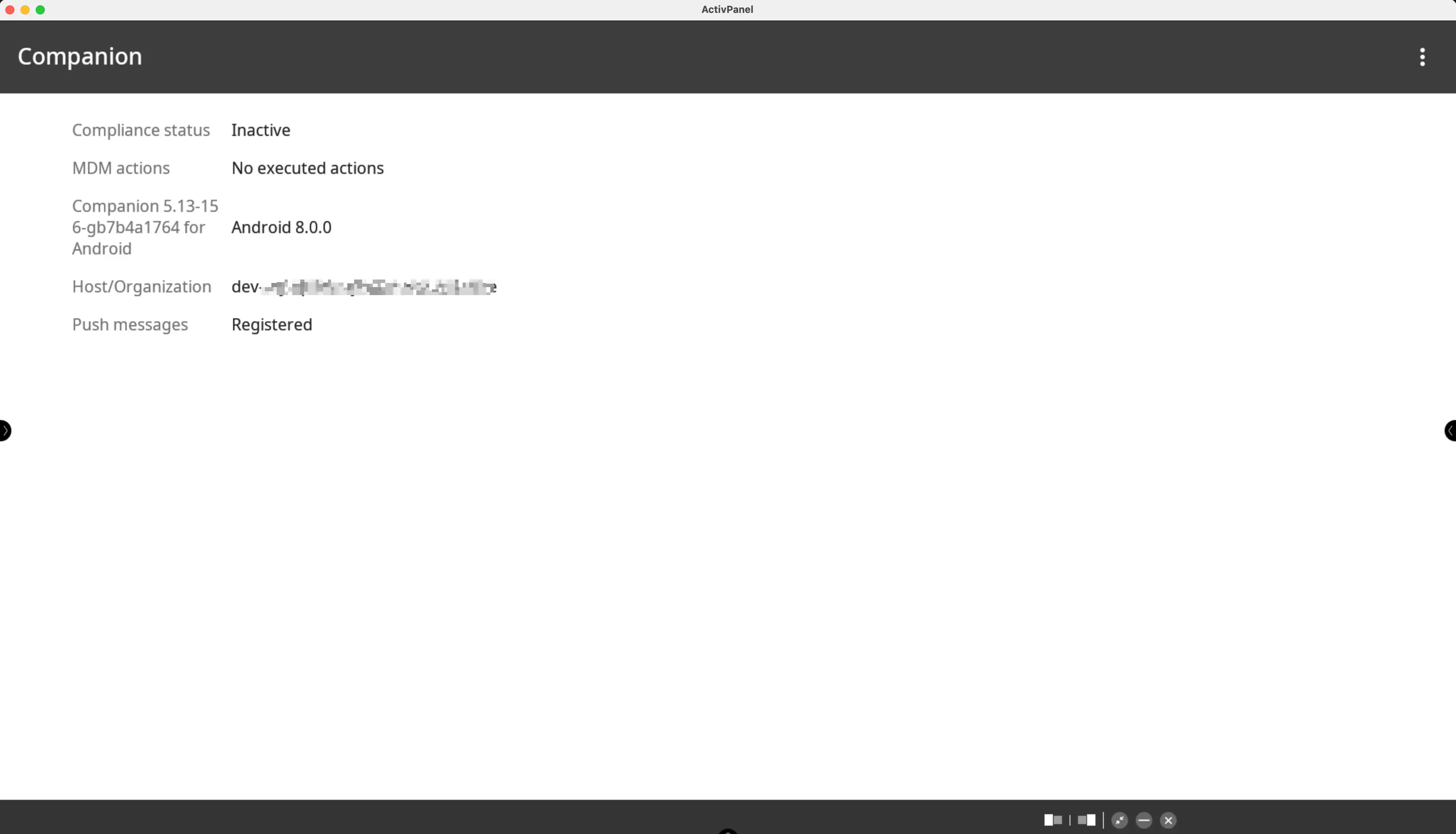
Then follow the on-screen instructions until the enrollment is completed.
The device should now be visible in the Relution Portal inventory.
Supported Actions
The following actions can be performed on CTOUCH interactive whiteboards via Relution:
| Action | Description |
|---|---|
| Alert | |
| Wipe Device | |
| Reboot device | Restart or shut down the device |
| Refresh device info | |
| Send message | |
| Lock device | |
| Unlock device → | |
| Deploy Relution Store app | Deploy native apps via Relution. Installation of unknown sources must be enabled |
Supported Policies
The following policies are supported on CTOUCH whiteboards:
| Policy | Restrictions |
|---|---|
| WiFi | |
| App Compliance | |
| Certificate | Only installation supported |
Manufacturer-specific policy
The manufacturer-specific policy CTOUCH offers the following settings:
| Setting | Description |
|---|---|
| LockScreen password | Set the password of the lockscreen |
| Wake on LAN | Enable Wake on LAN |
| Installation from unknown sources | Allow installation from unknown sources |
| Power on automatically | Set weekdays and time for automatic display power-on |
| Power off automatically | Set weekdays and time for automatic display power-off |
| Enable OTA Update | Enable automatic search for OTA updates |