 Customer Hub
Newline
Relution manages interactive whiteboards from Newline via the Android platform (Android Classic). The Relution Companion for Newline executes actions on the display and applies the manufacturer-specific Newline configuration.
Newline displays with Android Enterprise (EDLA) are not managed this way but via Android Enterprise and the Newline OEMConfig configuration, see Newline (Android Enterprise) →.
Prerequisites
- The display is enrolled with an enrollment for the Android platform and the type Newline.
- The Relution Companion for Newline (package name
com.mwaysolutions.relution.newline) is installed on the display. The Companion version currently provided by Relution is shown underSettings→Relution Client Apps→Newline companion. If a display reports an older version during a device query, Relution triggers the Companion update automatically.
Enrollment
Under Devices → Enrollments, an enrollment is created for the Android platform with Newline selected as the type. The enrollment link is then opened on the display; the enrollment is carried out with the Relution Companion for Newline. The notes and permission requests shown by the Companion are confirmed.
After successful enrollment, the display appears in the inventory of the Relution Portal.
Supported Actions
The following actions are available in the portal for Newline whiteboards:
| Action | Description |
|---|---|
| Trigger Alarm → | |
| Send File to Device → | |
| Wipe Device → | |
| Unlock Device → | |
| Shutdown device | Shuts down the display |
| Reboot Device → | Restarts the display without further options; on Newline, shutting down is a separate action |
| Lock Device → | Prerequisite: a password or PIN is set on the display |
| Refresh Device Info → | |
| Send Message → | |
| Deploy Relution Store App → |
Supported Policies
The following configurations are available in Android policies for Newline whiteboards:
| Configuration | Restrictions |
|---|---|
| Newline | Manufacturer-specific, see below |
| Scheduled OTA Update → |
Other Android Classic configurations, such as App Compliance or Kiosk Mode, are not applied to Newline whiteboards.
Manufacturer-specific policy
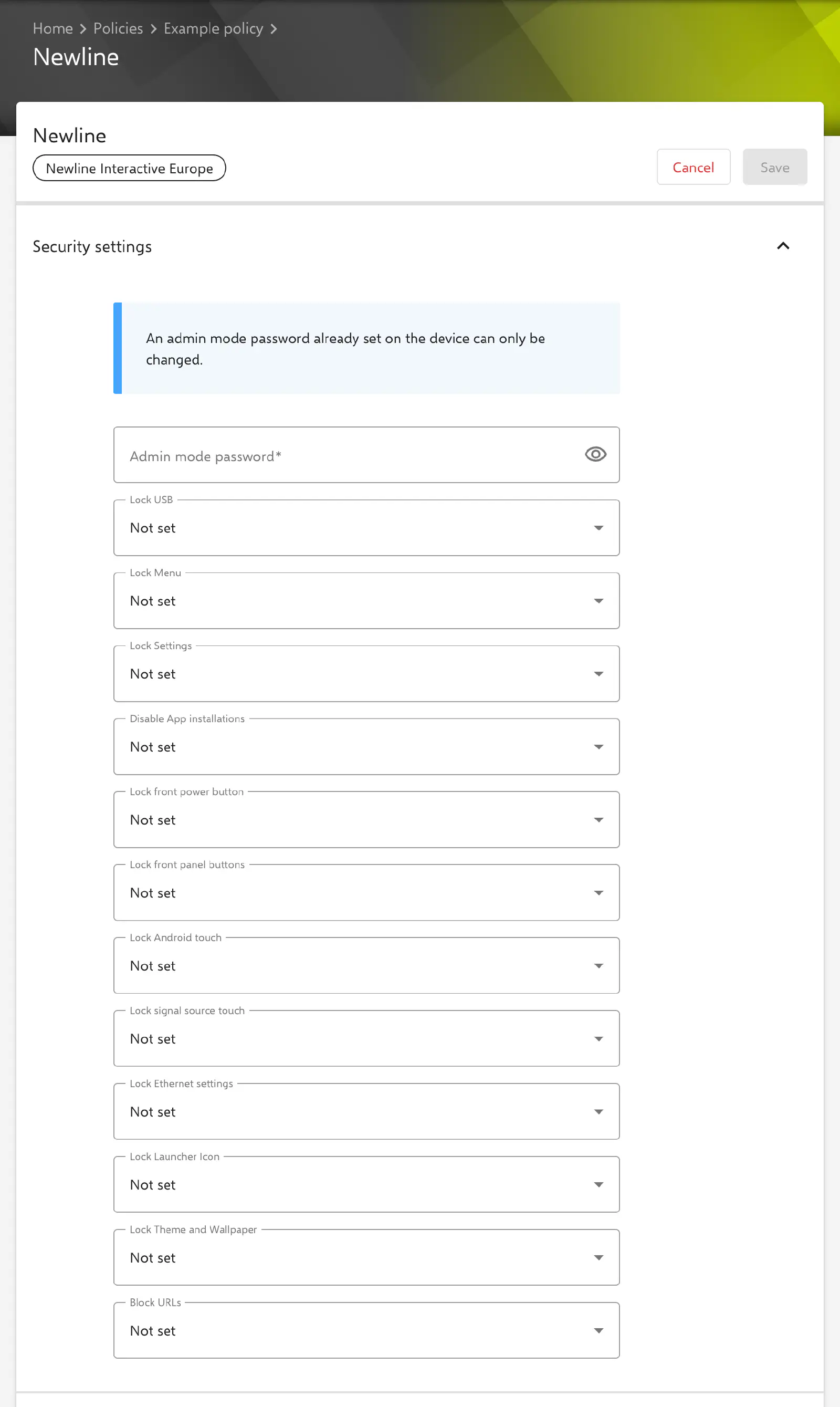
The Newline configuration is created via Devices → Policies → {Android policy} → Add → Newline → Add details. It can be added once per policy and only applies to devices with the enrollment type Newline. Placeholders are not supported.
Almost all settings are selection fields with the values Not set, Enabled and Disabled. The default is Not set in each case; Relution then does not specify this setting. Number fields are also empty by default. The only mandatory entry is the Admin mode password.
Security settings
- Admin mode password: password for the admin mode of the display. Mandatory, 6 to 16 characters; the input is displayed masked. According to the note in the form, an admin mode password already set on the display can only be changed via the configuration.
- Lock USB: locks the USB ports.
- Lock Menu: locks the display menu.
- Lock Settings: locks access to the settings.
- Disable App installations: prevents the installation of apps.
- Lock front power button: locks the power button on the front.
- Lock front panel buttons: locks the buttons on the front panel.
- Lock Android touch: locks touch input in the Android system.
- Lock signal source touch: locks touch input for external signal sources.
- Lock Ethernet settings: locks the Ethernet settings.
- Lock Launcher Icon: locks the launcher icons.
- Lock Theme and Wallpaper: locks the selection of theme and wallpaper.
- Block URLs: when set to Enabled, the Blocked URLs list appears. Each entry is a URL without protocol and port, e.g.
example.com, or an IPv4 address.
Audio settings
- Sound Output: Not set, ARC, Line Out, Mixed, S/PDIF or Speaker.
- Volume: value from 0 to 100.
- Mute: mutes the sound.
Device settings
- Wake on LAN: switching on the display via the network.
- Wake on Wireless: switching on the display via WiFi.
Network settings
- WiFi, Ethernet and Hotspot: switch the respective network function on or off.
- Proxy Host: host name or IP address of the proxy server.
- Proxy port: port of the proxy server, 1 to 65535.
- Proxy exclusion List: comma-separated list of hosts that bypass the proxy.
Display settings
- Picture Mode: Not set, Custom, Normal, Soft or Vivid.
- The fields Brightness, Sharpness, Contrast and Saturation, each with values from 0 to 100, only appear for Custom. For the other picture modes, these values are not transferred.
Source settings
- Start source: signal source after switching on: Android, DP, HDMI 1, HDMI 2, HDMI 3, OPS, SDM, USB Type C Front or USB Type C Rear.
- Automatically switch sources: automatically switches to a newly connected signal source.
- CEC automatic power on and CEC automatic power off: switching on and off via HDMI-CEC.
- HDMI/DisplayPort Type: Version 1.4 or Version 2.0.
- Signal Source Wake-up: wakes the display as soon as a signal is present at a source.
System settings
- 24h Format: time in 24-hour format.
- Left Tool Bar and Right Tool Bar: show or hide the side toolbars.
- Quick settings: access to the quick settings.
- Start-up time and Shut-down time: when set to Enabled, Day of the week (at least one day) and Time for automatic switching on or off are specified. Both entries are then mandatory.
- Energy saving: when set to Enabled, the Energy saving time field in minutes appears (whole number from 0). The form names 30, 60, 90 and 120 as common values.
- Power-Button mode: behavior of the power button: Power off or Sleep.
- Tap to wake screen: wakes the display by touching the screen.
- Eye protection writing and Eye protection brightness: eye protection modes. Both cannot be enabled at the same time; if one is set to Enabled, the form sets the other to Disabled.
- Filter blue light: when set to Enabled, Filter blue light level appears with the filter intensity from 0 to 100.
- Logo: shows or hides the logo.
- Newline Theme: Google Theme, Q Theme or Z Theme.
- Clear Files Days: interval at which stored files are deleted: Never, Every Time, One Year, 180 Days, 90 Days, 60 Days, 30 Days or 7 Days.
- System language: German, English, Spanish, French, Italian or Turkish.
- Android OS: enables or disables the Android system of the display.
OTA settings
- Local OTA: updates via the local OTA function of the display.
- OTA background download: downloads updates in the background.
- OTA notification: shows notifications about available updates.
Scheduled updates are not specified here but with the Scheduled OTA Update → configuration.
Related topics
- Newline (Android Enterprise) →
- Scheduled OTA Update →
- Unlock Device →
- Companion & Daemon →
- Manufacturers →