 Customer Hub
Promethean
Relution makes it possible to manage interactive whiteboards from the Promethean brand.
Supported product ranges and models
The following product series are supported:
- Active Panel 7 and Active Panel 7 Premium
- Active Panel 9 and Active Panel 9 Premium
Enrollment
An enrollment is created for the platform Android with Promethean selected as the type.
The Relution Companion must already be installed via Promethean World before enrolling.
If Promethean World or the Relution Companion is not available, contacting the personal Promethean representative is recommended.
The server address and the enrollment code are entered in the Relution Companion.
The Companion requests several confirmations; the displayed notifications and authorization requests are confirmed. After successful enrollment, a corresponding confirmation screen will appear.
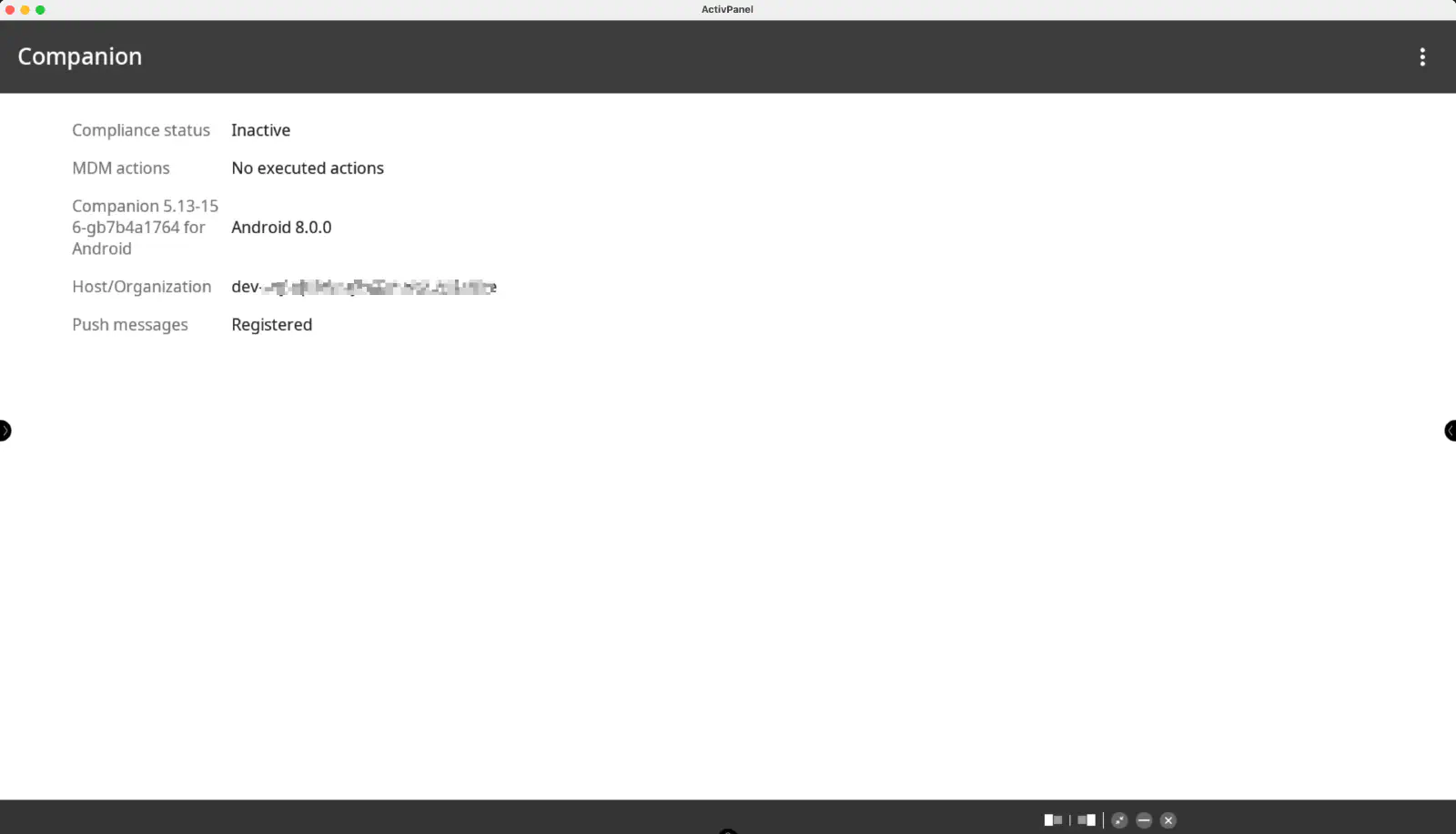
The on-screen instructions then lead through the remaining steps until the enrollment is completed.
The device should now be visible in the Relution Portal inventory.
Supported Actions
The following actions can be performed on Promethean interactive whiteboards via Relution:
| Action | Description |
|---|---|
| Trigger Alarm → | |
| Remove App → | |
| Send File to Device → | |
| Wipe Device → | |
| Reboot Device → | Restart or shut down (Power off option) |
| Lock Device → | Requires a PIN set on the device or via the Activ Panel Pin setting of the manufacturer-specific policy |
| Refresh Device Info → | |
| Send Message → | |
| Deploy Relution Store App → | |
| Remove Shortcut → | |
| Add Shortcut → | |
| Update Operating System → |
Supported Policies
The following policies are supported on Promethean interactive whiteboards:
| Policy | Restrictions |
|---|---|
| Kiosk Mode → | |
| WiFi → | |
| Hotspot → | Only available for Active Panel 9 and Active Panel 9 Premium |
Manufacturer-specific policy
The manufacturer-specific policy Promethean offers the following settings. They are listed in the same order as in the portal. Selection fields are set to Don’t change when the policy is created; in that case, the value on the whiteboard remains unchanged.
| Setting | Description |
|---|---|
| Brightness | Set brightness to a fixed value between 0 and 100 |
| Brightness Mode | Possible values: Don’t change, Auto, Energy Saving, Eye Protection, Normal |
| Pencil end | Define the mode of the pencil end: Pen (default) or Eraser |
| Contrast | Set contrast to a fixed value between 0 and 100. Only available for Active Panel 7 |
| Time until panel goes into standby mode | Automatic transition into standby mode after 3 minutes to 4 hours |
| Time until panel goes to sleep | Automatic transition into sleep mode after 3 minutes to 8 hours |
| Enable Proximity Sensor | Enable/disable wake on proximity. Only available for Active Panel 7 and Active Panel 9 Premium |
| Enable Proximity Sensor Delay Timer | Enables / Disables the delay timer for the proximity sensor |
| Proximity Sensor Delay Time | Possible values: Don’t change, 1 min, 5 min, 10 min |
| Enable Proximity Illuminate Screen | Enables / Disables Illuminate Screen when motion is detected |
| Enable Proximity Reset Standby And Sleep Timer | Enables / Disables Reset standby and sleep timer when motion is detected |
| Reduce blue light | Enable/disable the blue light filter |
| Source Detection | Configure automatic source detection. Possible values: Don’t change, Automatic, Manual, Off |
| Default Source | Set the default source, e.g. the last used source, Home, HDMI 1–3, AV, DP, OPS, USB-C or VGA |
| HDMI EDID Mode | Set the HDMI EDID mode to EDID 1.4 or EDID 2.0 |
| Show Network Settings | Show or hide the network settings on the device |
| Wake on LAN | Enable Wake on LAN function |
| Enable Network Discovery using AirPlay | Enable/disable the AirPlay discovery protocol |
| Enable Network Discovery using Promethean | Enable/disable the proprietary Promethean discovery protocol |
| Enable Network Discovery using WebRTC | Enable/disable the WebRTC discovery protocol |
| Enable Network Discovery using Wi-Fi Direct | Enable/disable the use of the Wi-Fi Direct discovery protocol |
| Enable miracast over infrastructure | Enable/disable the miracast over infrastructure protocol. Disable this when Enable Network Discovery using Wi-Fi Direct is off. |
| Enable IPv6 | Enable/disable IPv6. Not available on OPS |
| Volume | Set volume to a fixed value between 0 and 100. Cannot be changed while Enable Mute is enabled |
| Enable Mute | Mute the volume |
| Enable Panel Speakers | Enables / Disables the panel speakers |
| Enable Include Panel Speakers | Include panel speakers or not. Only enable it when Line Out Mode is set to Line out and Enable Panel Speakers is enabled. |
| Bass | Bass level between 0 and 100 |
| Balance | Balance level between 0 and 100 |
| Treble | Treble level between 0 and 100 |
| Midrange | Midrange level between 0 and 100 |
| Line Out Mode | Possible values: Don’t change, Earphone, Line out |
| Enable Subwoofer | Enable/disable the use of the Subwoofer. Only enable when Enable Panel Speakers is enabled. |
| Panel Mode | Possible values: Don’t change, Full display, No display, Limited display |
| Enable Users and Profiles | Enable/disable the management of local users on the device. Only available for Active Panel 7 |
| Enable Unified Menu | Show or hide the Unified Menu |
| Enable Display Menu Tab | Show or hide the Menu tab |
| Enable Home Source | Enable/disable the home source feature |
| Enable Apps | Show or hide non-system apps in the launcher |
| Show App Settings | Show or hide the app settings on the device |
| Enable Side Loading | Allow or prevent the installation of apps from other sources (side loading) |
| Enable Google Play | Enable/disable Google Play on the device. Only available for Active Panel 7 |
| Enable Factory Reset | Allow or prevent a factory reset on the device |
| Lock down settings | Prevent access to and changes of the panel settings on the device |
| Enable OTA Update | Allow or prevent over-the-air firmware updates |
| Enable Local Update | Allow or prevent local firmware updates |
| Restart Screen Share on update | If enabled, Screen Share restarts whenever network discovery using AirPlay, Promethean or WebRTC changes. Otherwise, Screen Share applies the changes the next time it starts |
| Apply Activ Panel Pin | Enables management of the PIN. Only available for Active Panel 9 and Active Panel 9 Premium. If the Activ Panel Pin field is left empty while this option is enabled, the PIN on the whiteboard is cleared |
| Activ Panel Pin | PIN with 4 to 16 digits (only 0–9). Can only be edited if Apply Activ Panel Pin is enabled |
| Show Passwords Enabled | Enable/disable showing passwords. Enabled by default |
| Hide System Lock | Show or hide the system lock |
| Identity requires user logging in to belong to the panel’s enrolled org |