 Customer Hub
Prowise
Relution makes it possible to manage interactive whiteboards from the Prowise brand.
Supported product ranges and models
The following product series are supported:
- Touchscreen
- Touchscreen Ultra
Enrollment
An enrollment is created for the platform Android with Prowise selected as the type.
The Relution Companion must already be installed via the Prowise Store before enrolling.
The server address and the enrollment code are entered in the Relution Companion.
The Companion requests several confirmations; the displayed notifications and authorization requests are confirmed. After successful enrollment, a corresponding confirmation screen will appear.
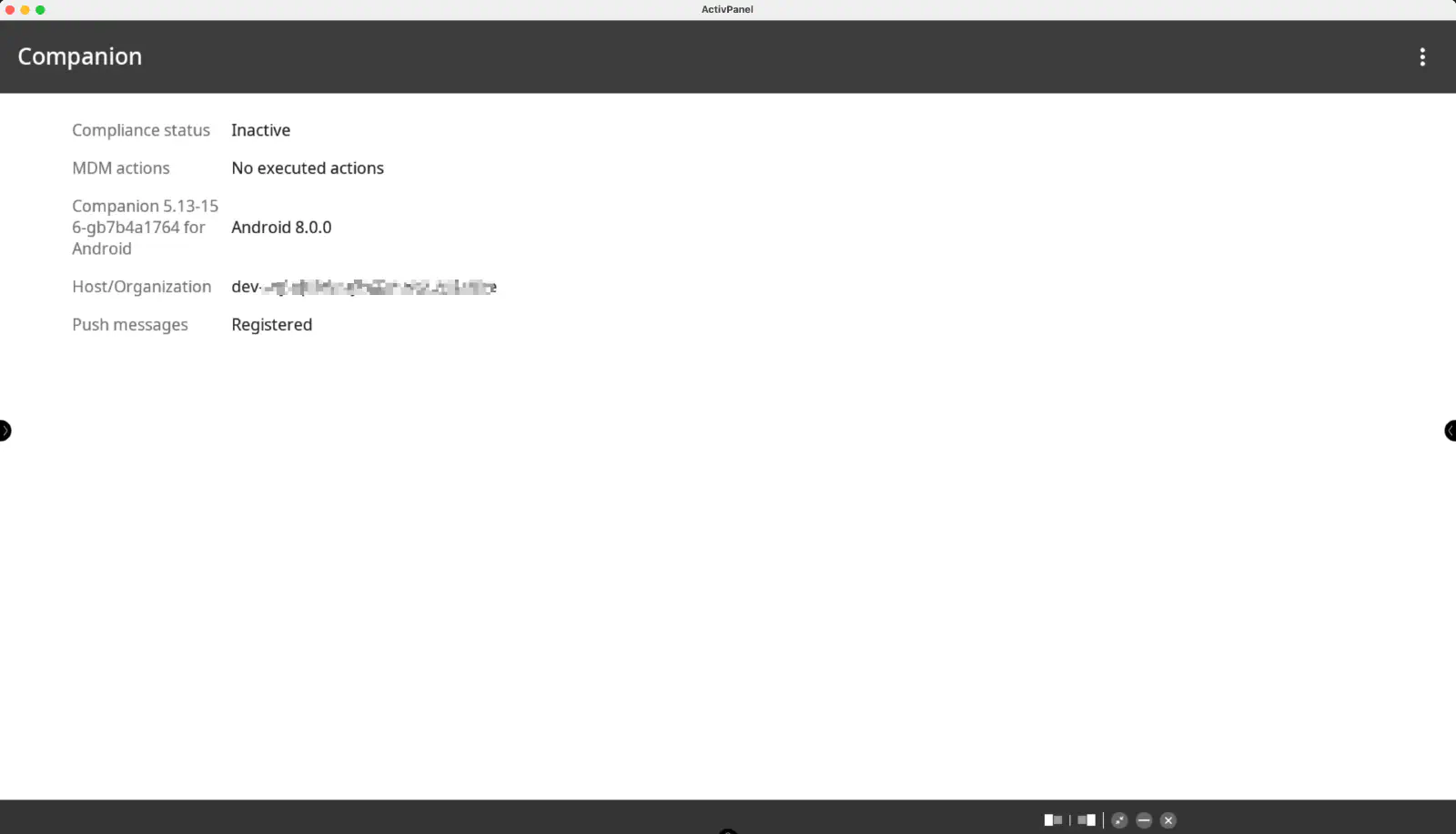
The on-screen instructions then lead through the remaining steps until the enrollment is completed.
The device should now be visible in the Relution Portal inventory.
Supported Actions
The following actions can be performed on Prowise interactive whiteboards via Relution:
| Action | Description |
|---|---|
| Trigger Alarm → | |
| Install App from Prowise App Store → | |
| Remove App → | |
| Send File to Device → | |
| Reboot Device → | Restart or shut down (Power off option) |
| Lock Device → | Requires a password or PIN set locally on the device or, if available, via configuration |
| Refresh Device Info → | |
| Send Message → | |
| Install Prowise Update → |
Among others, Wipe Device, Deploy Relution Store App, Update Operating System and adding or removing shortcuts are not available on Prowise whiteboards. Apps and updates are installed via the two Prowise actions.
Supported Policies
The following policies are supported on Prowise interactive whiteboards:
| Policy | Restrictions |
|---|---|
| Kiosk Mode → | |
| App Compliance → |
Interactive Board Configuration
The policy Interactive Board Configuration offers the following settings to manage Prowise interactive whiteboards:
| Setting | Description |
|---|---|
| Disable screen sharing services | Disable Reflect, AirPlay, Chromecast and Miracast. The toggle selects all four services; individual services can then be deselected via checkboxes |
| Lock settings | Locks the settings on the whiteboard. If enabled, Pin to unlock settings is a required field that only accepts digits |
| Lockscreen | Only available if Lock settings is enabled |
| Lock USB ports | |
| Brightness | Set brightness to a fixed value between 0 and 100 (default: 100). The value is sent with every configuration |
| Lock selected apps | The Off/On toggle locks a list of apps |
| Disabled input channels | List of video inputs that are disabled on the whiteboard |