 Customer Hub
Windows App Installation
With the Relution Companion for Windows, it is now possible for administrators to upload classic apps (.msi and .exe applications) from a Windows device to the Relution App Store and conveniently install and uninstall them on all Windows devices managed by Relution.
The following steps must be followed for a successful installation:
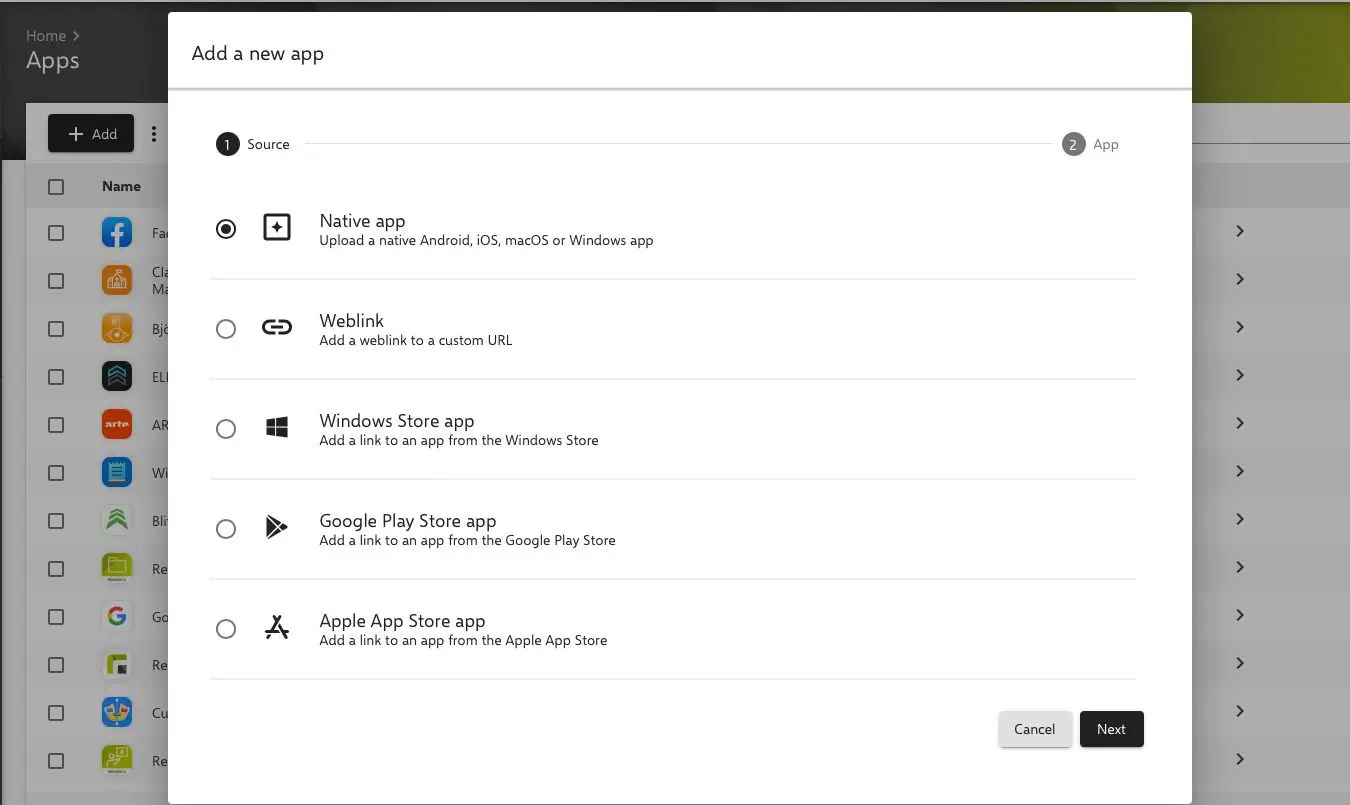
- The Native App must be selected in the app inventory via Add.
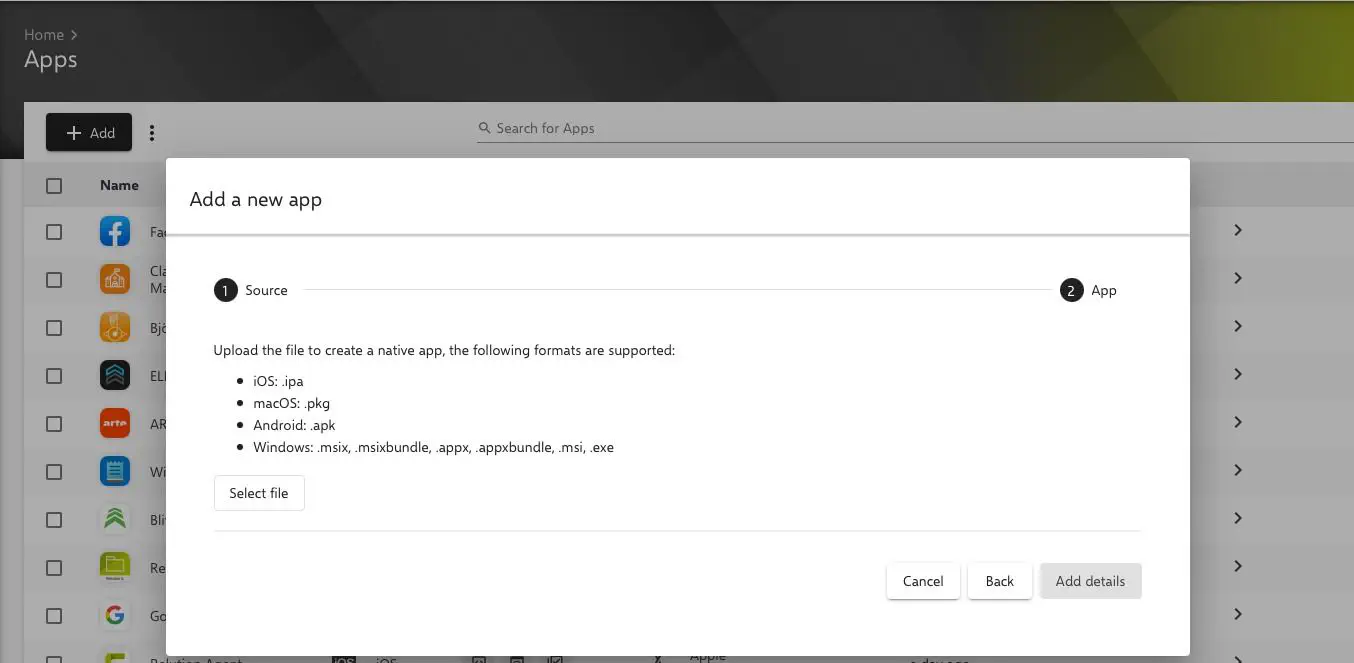
- In the next step, the appropriate file in the correct format
.msior.exemust be uploaded via Select File and the native file manager.
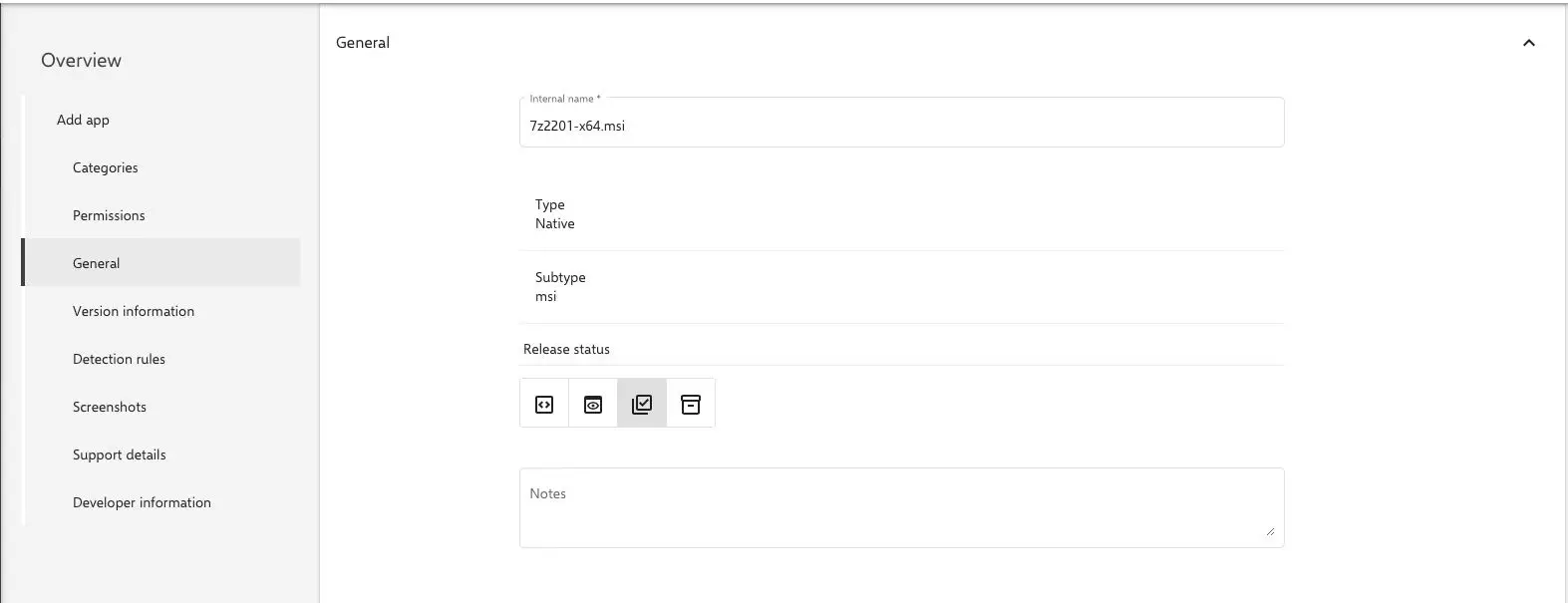
- After pressing the button add details, the app details page opens. The required parameters must be found out by the administrator and entered manually. The minimum information includes the version name and one of the available detection rules.
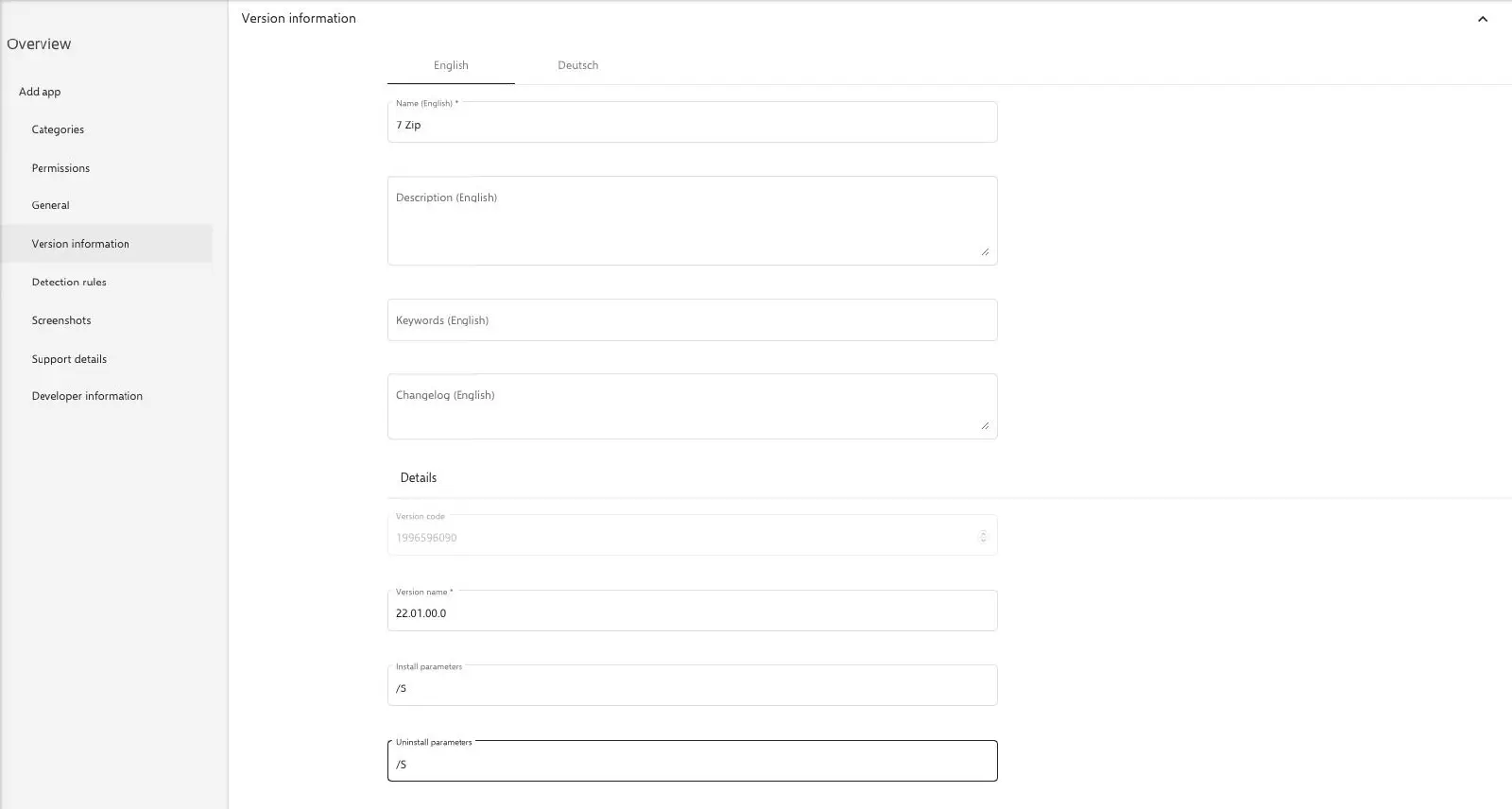
- Optionally, parameters for installation and uninstallation can be set under version information. To enable an automatic process, the
/sor/quietparameter should be set here, which will perform an installation and uninstallation of the app in the background without manual intervention.
- Subsequently, detection rules are added that allow the Relution Companion for Windows to uniquely identify the applications on the Windows machine.
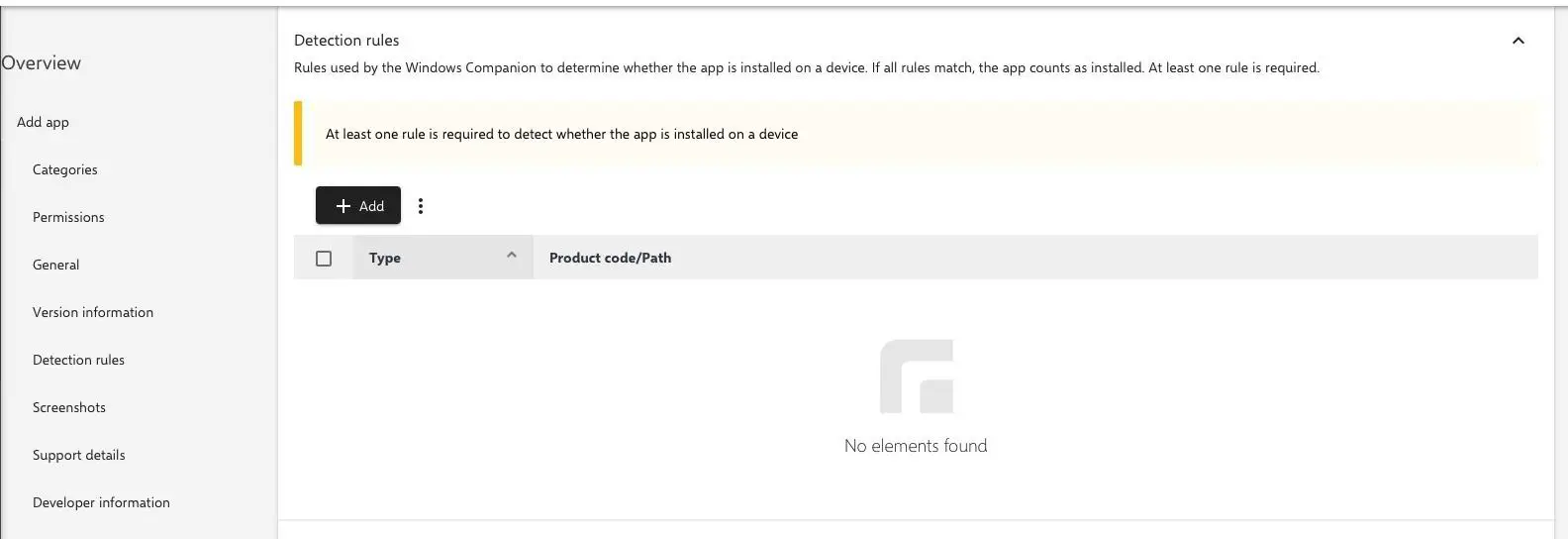
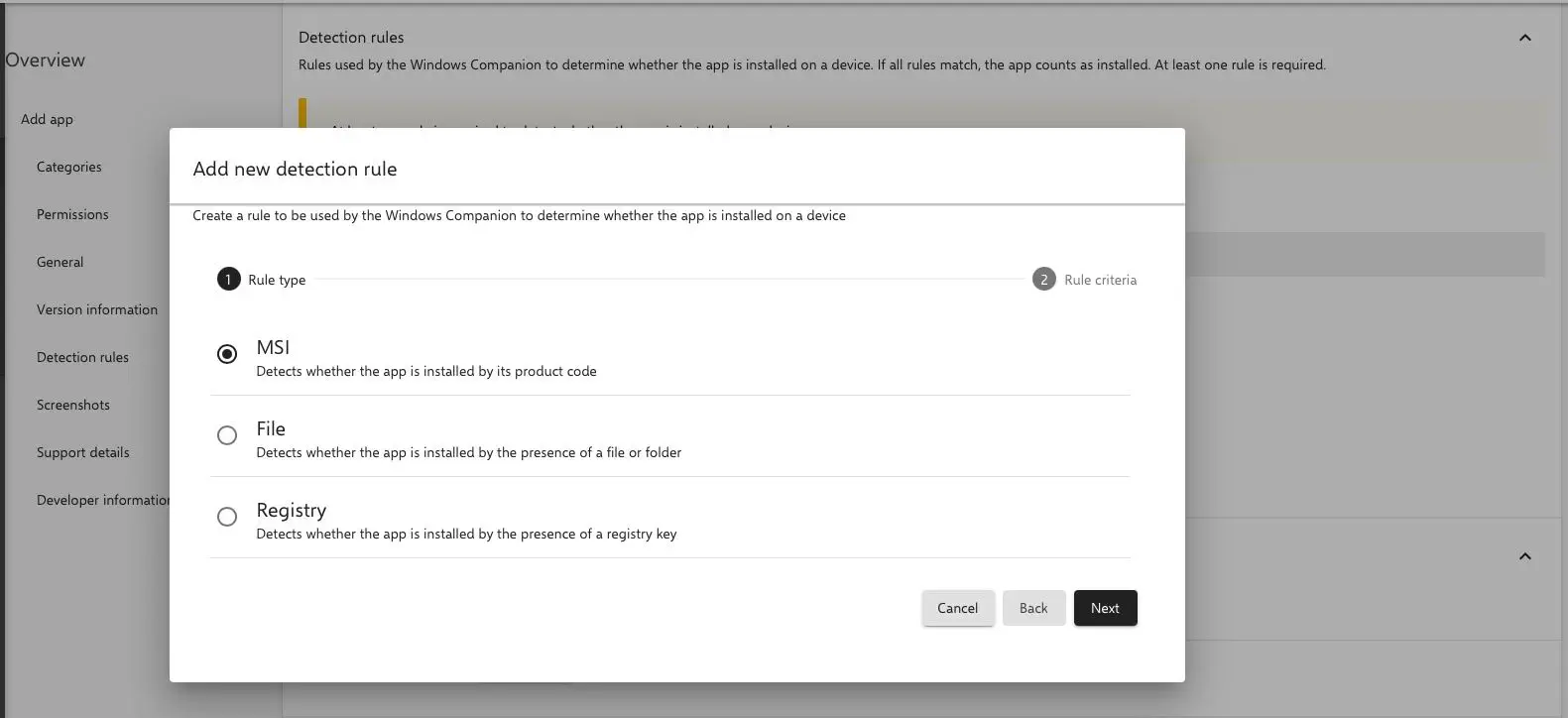
- Three types of detection rules are available.
At least one rule is required to detect the program on the Windows device.
For
.msifiles, the MSI detection rule is required in order to be able to uninstall the app. For.exefiles, the two detection rules File and Registry are suitable. It is possible to use multiple detection rules for an app.
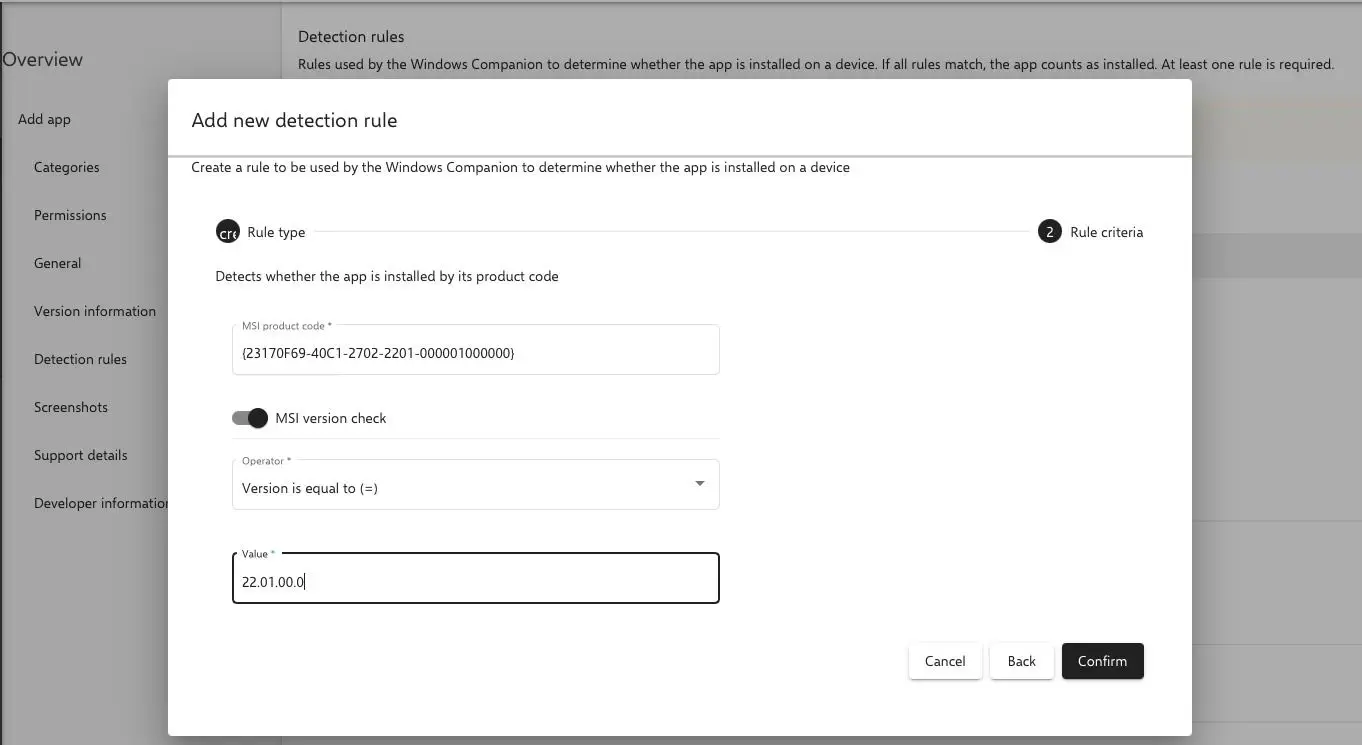
- To apply the MSI detection rule, the MSI product code of the application is entered in the corresponding field. Since there can be multiple versions of an application, enabling the MSI version check allows to additionally check for the version number. To specify a unique version number, the value Version is equal is selected in the Operator field and then the unique version number is entered.
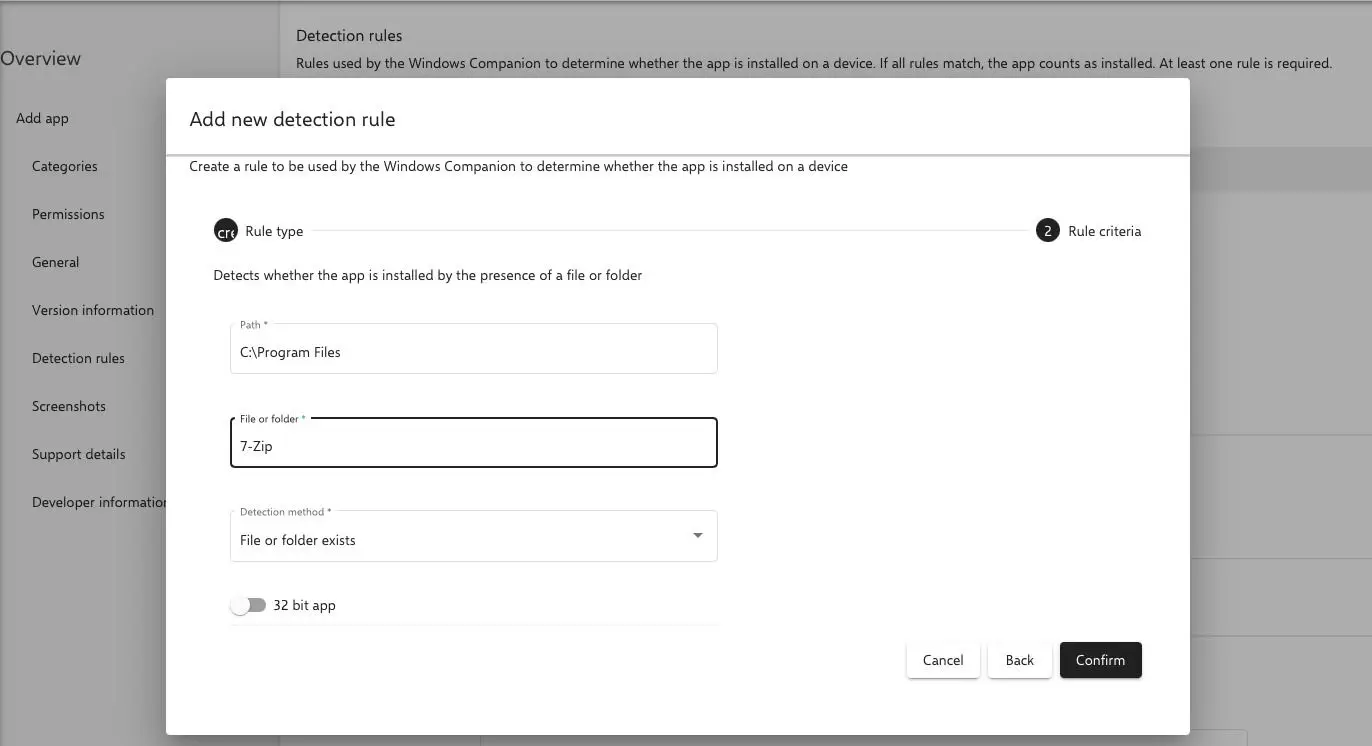
- The
filedetection rule detects by the installation path if the application is installed on the Windows device. For this purpose, the path of the folder is specified. In addition, the appropriate, exactly pre-installed folder must be detected and the respective architecture of the program must be selected. Choose between 32-bit or 64-bit applications.
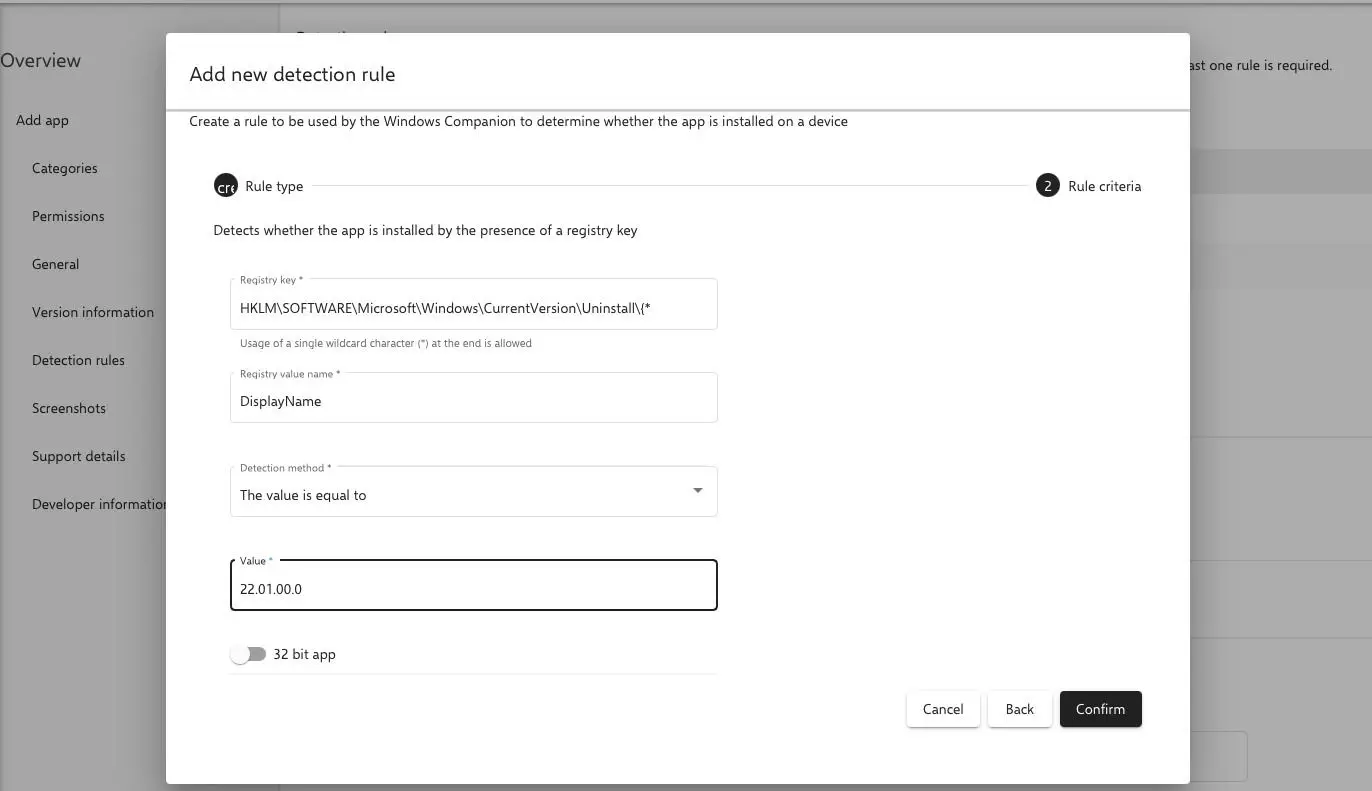
- The Registry detection rule checks the existence of the application on the Windows device against the Windows registry key. The Registry key, Registry value, Detection Method and Value fields are specified manually. The name of the registry value is always
DisplayName. In order to uniquely detect the application on the Windows device, it is recommended to select Value is equal to for the Detection Method field. The required Value is obtained from the application itself.
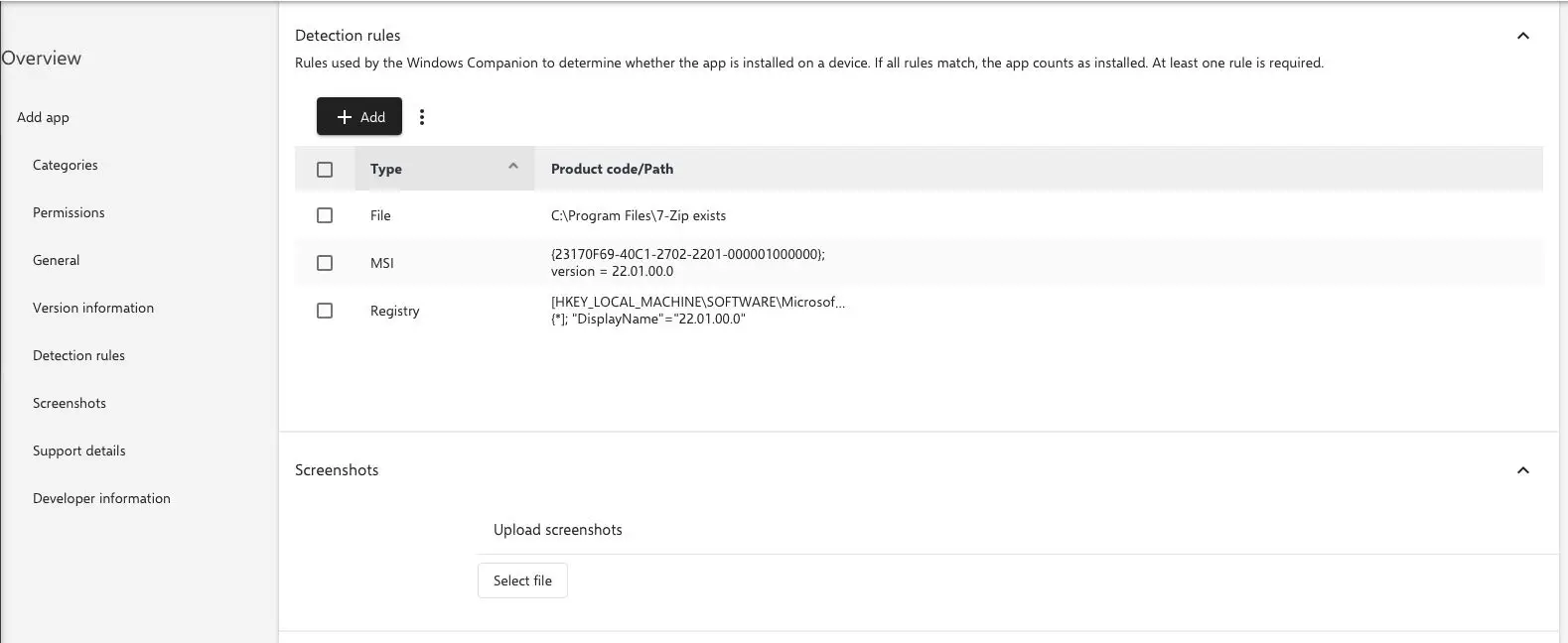
After adding the required detection rules, the application can be saved. Afterwards, the native app can be conveniently installed and uninstalled on all managed Windows devices via the Relution App Store.
Uninstalling Windows Store Apps
Windows Store apps cannot be uninstalled via the graphical interface. Therefore, it is necessary to remove them locally or via Relution using a PowerShell script. Below are the general steps:
Find the app on the device
Get-AppxPackage -Name *<AppName>* -AllUsers
Uninstall the app via script
Get-AppxPackage -Name *<AppName>* -AllUsers | Remove-AppxPackage -AllUsers
Get-AppxProvisionedPackage -Online | Select PackageName
Then remove it completely:
Remove-AppxProvisionedPackage -Online -PackageName <PackageFullName>
Recommendation: Use WinGet
Whenever possible, WinGet should be used. It provides access to significantly more apps and makes uninstallation easier: WinGet →