 Customer Hub
Create MSIX files
The MSIX format is a Windows app package format used to create and distribute applications in Windows 10/11. These MSIX files are usually not available via a simple download, as they need to be certified and “repackaged” before being installed on Windows devices.
MSIX Packaging Tool
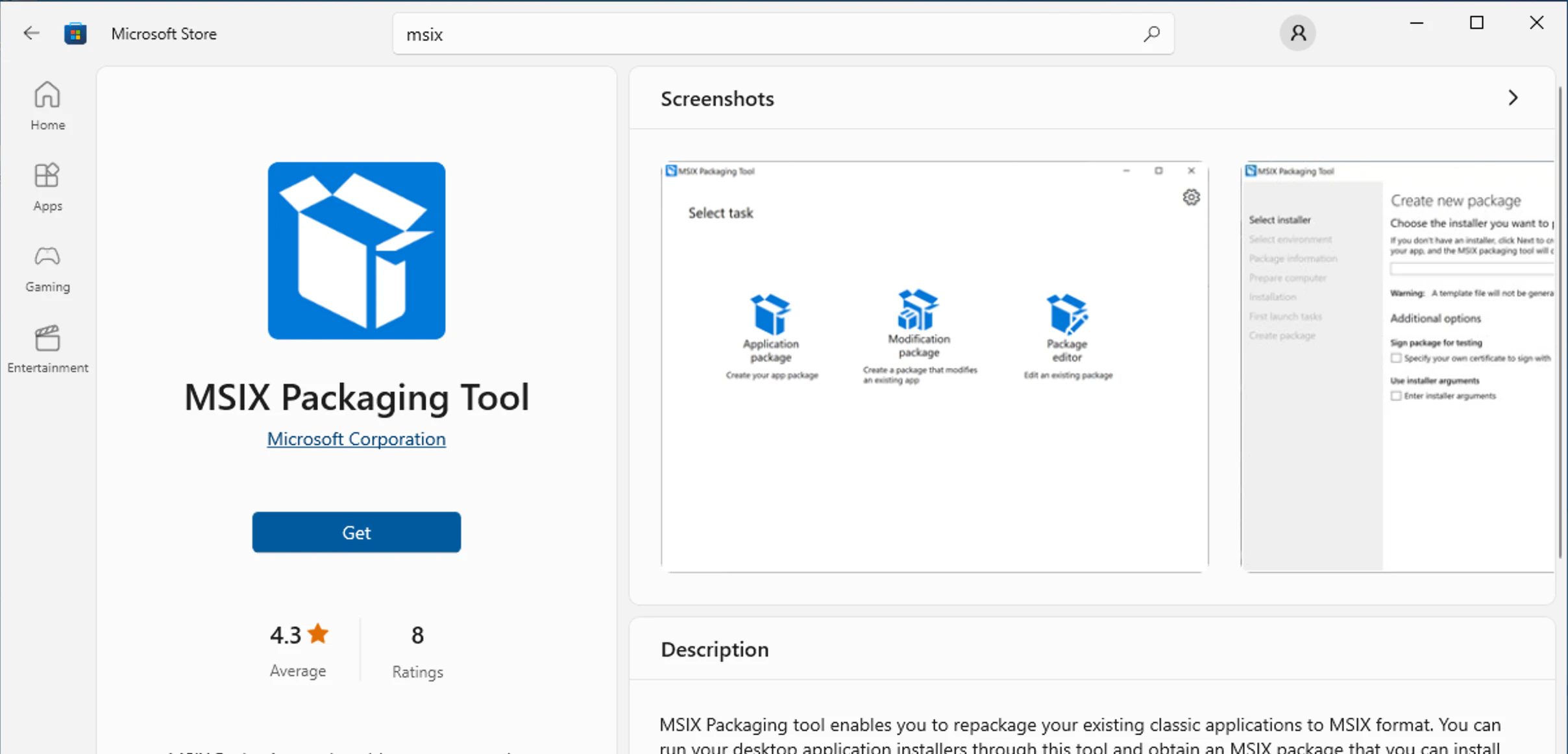
The creation of MSIX files requires the MSIX Packaging Tool, which can be downloaded from the Microsoft Store → and installed on a Windows device.
Certificate creation
The next step is to create a certificate. This can be done comfortably via PowerShell. If necessary, the name of the certificate and/or the password are adjusted in the script.
# Generate a new self signed certificate with the subject 'CN=Relution', the key algorithm RSA,
# the key length 2048, the key usage DigitalSignature and the type CodeSigningCert and save it
# in the personal certificate store of the current user
$Newcert = New-SelfSignedCertificate -Subject 'CN=Relution' -KeyAlgorithm RSA -KeyLength 2048 -KeyUsage DigitalSignature -Type CodeSigningCert -CertStoreLocation Cert:\CurrentUser\My

# Get the thumbprint of the newly generated certificate
$thumbprint = $Newcert.Thumbprint

# Get the certificate object from memory by its thumbprint
$cert = (Get-ChildItem -Path cert:\CurrentUser\My\$thumbprint)

# check if the certificate was retrieved successfully
if ($cert -ne $null) {
    # convert the plaintext password string to a secure string
    $Secure_String_Pwd = ConvertTo-SecureString "Passw0rd" -AsPlainText -Force

    # Export the certificate to a PKCS#12 file on the user's desktop
    Export-PfxCertificate -Cert $cert -FilePath $env:USERPROFILE\desktop\MSIXZertifikat.pfx -Password $Secure_String_Pwd

    # Remove the certificate from memory
    Remove-Item cert:\CurrentUser\My\$thumbprint
}
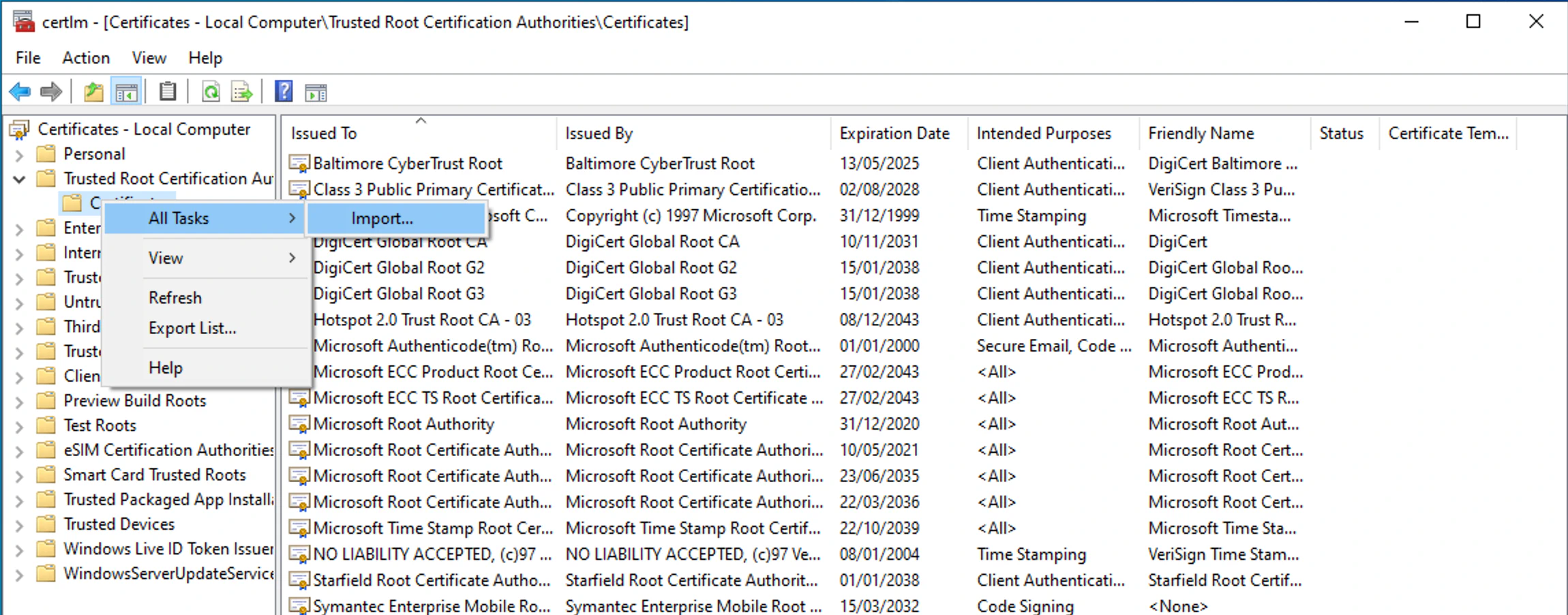
The created certificate must be stored in the Trusted Root Certification Authorities category on all Windows 10/11 devices where MSIX files are to be installed. This can be done either with Relution via the policy configuration Certificate or manually, directly on the devices. The password string in the example is Passw0rd. To add the certificate manually, the certificate management Manage Computer Certificates is started as an administrator.
Creation of MSIX files
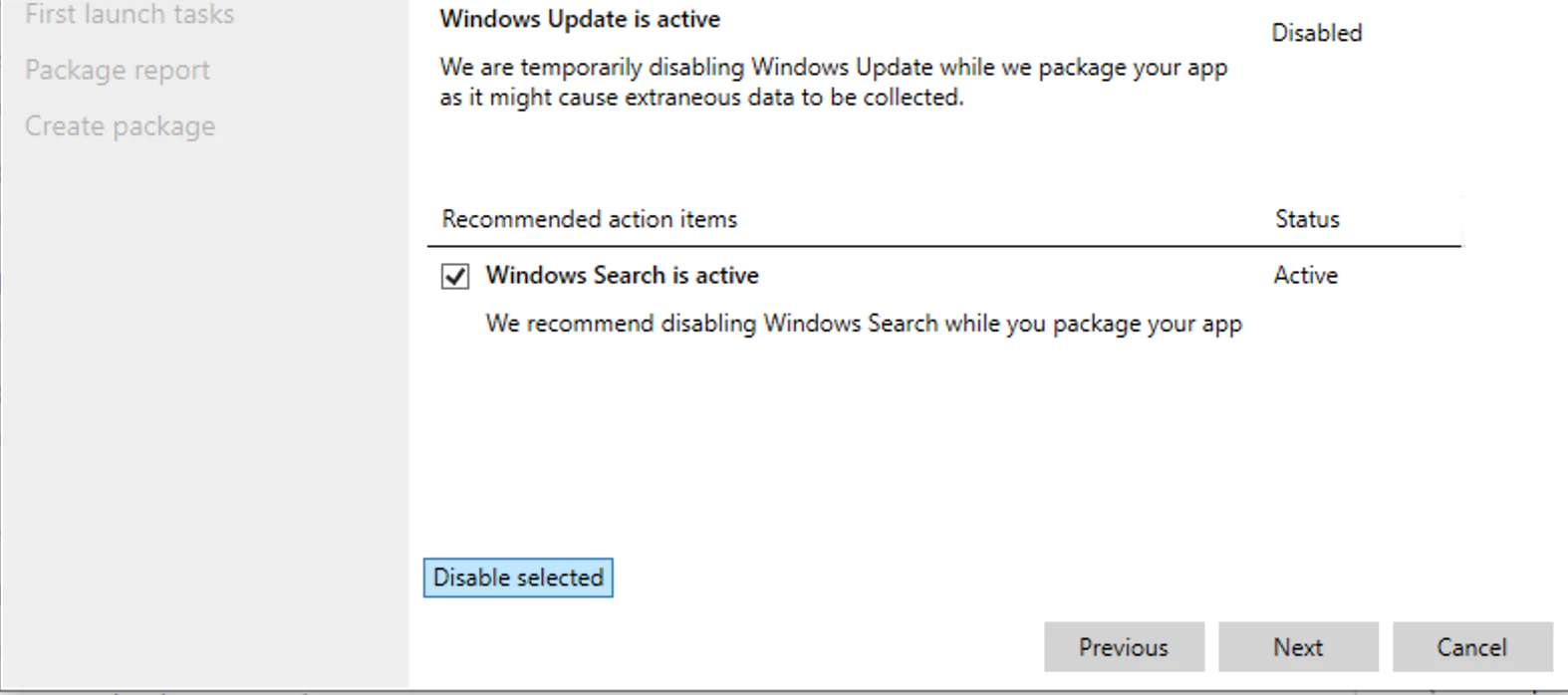
In the MSIX Packaging Tool, the option to create a new app package is selected. In the following dialog, Windows Search is active is unchecked.
In the example, an MSIX file is created for Notepad++. First, the setup file has to be downloaded. Then the file and the certificate have to be selected in the MSIX Packaging Tool. The Signing preference must be set to Sign with a certificate (.pfx).
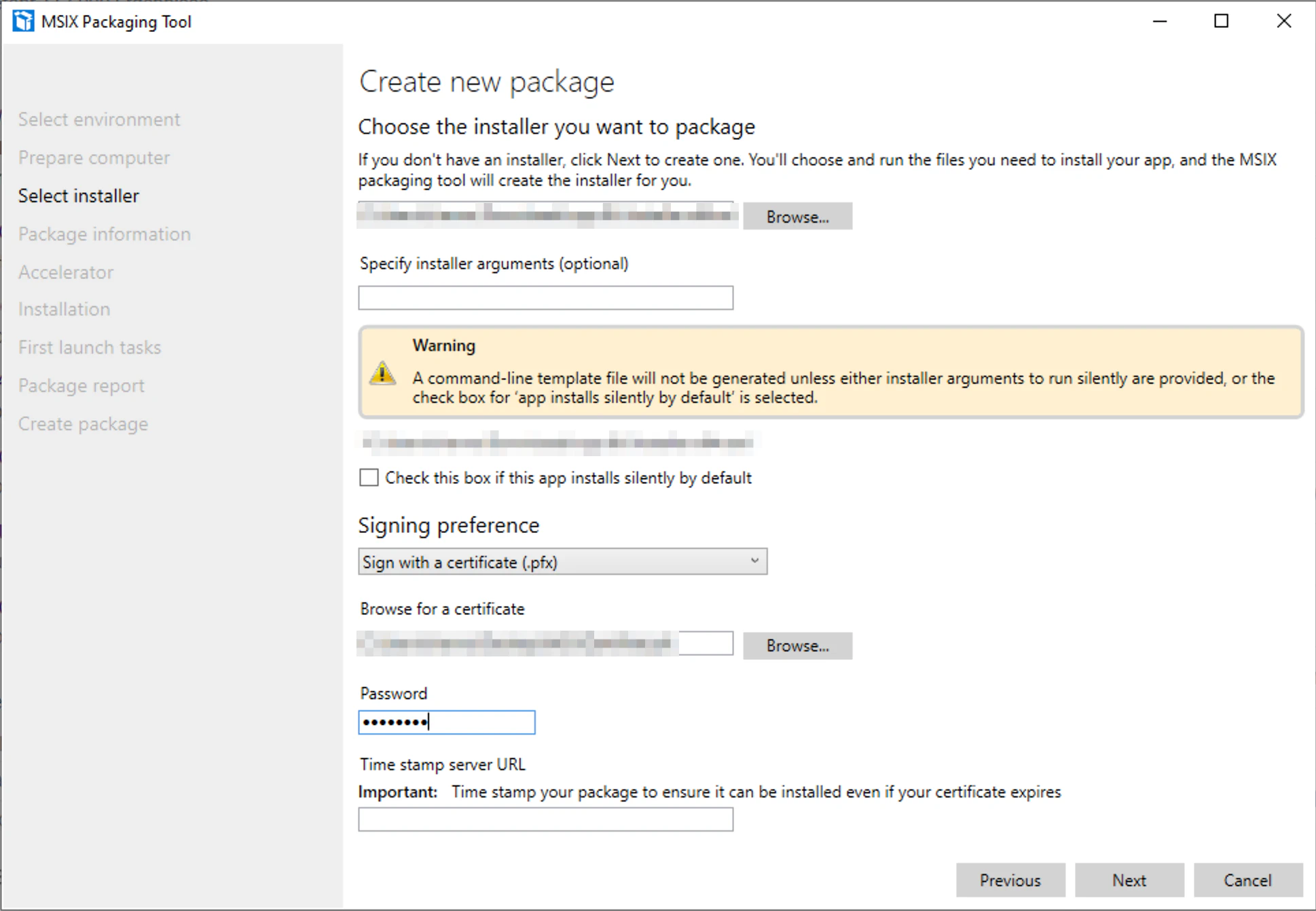
The appropriate fields have to be filled in.
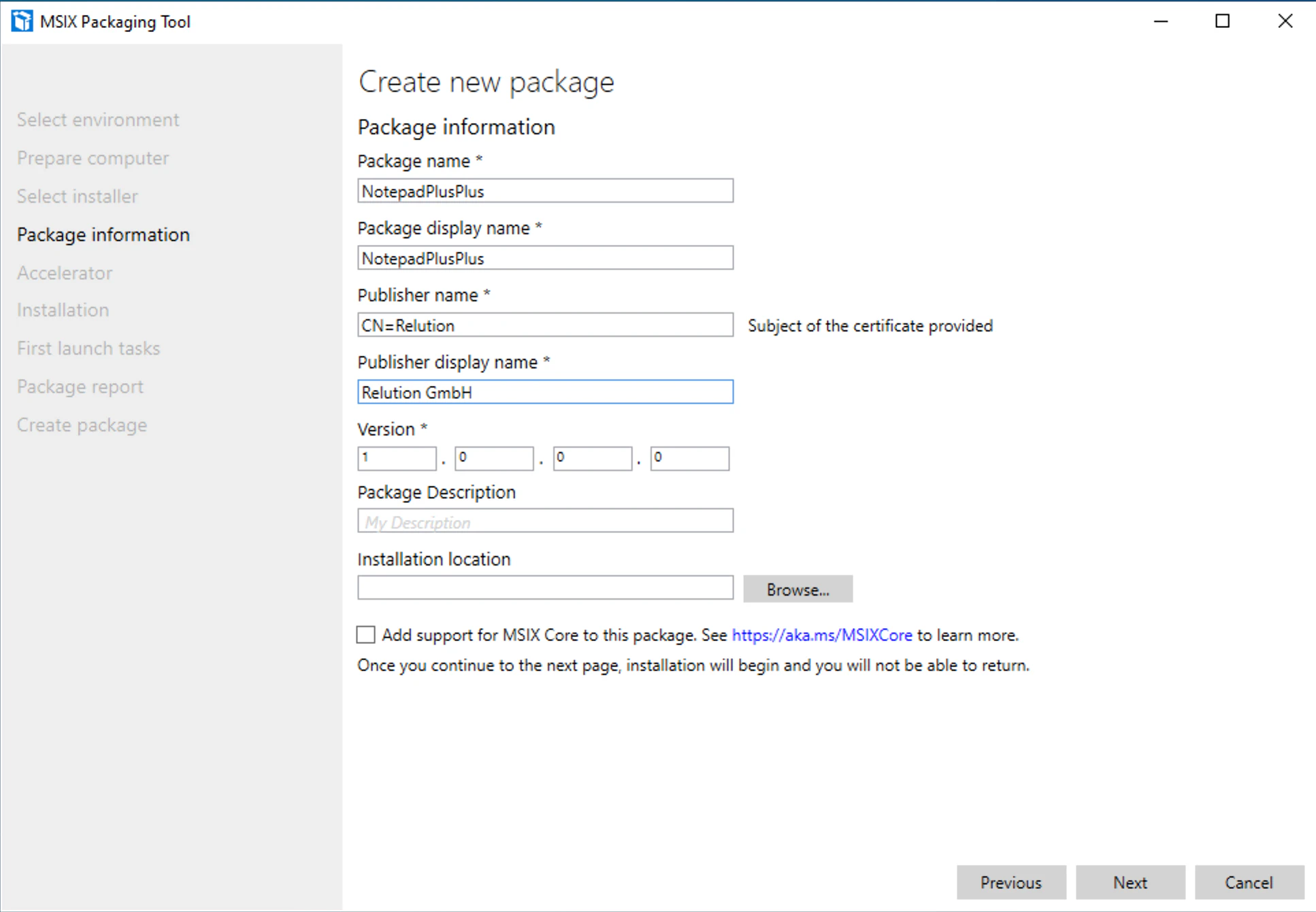
Now, the installer of Notepad++ starts. It should be run normally and the configurations have to be set according to the needs.
When the installation of Notepad++ is finished, Next and Yes, move on are clicked in the MSIX Packaging Tool.
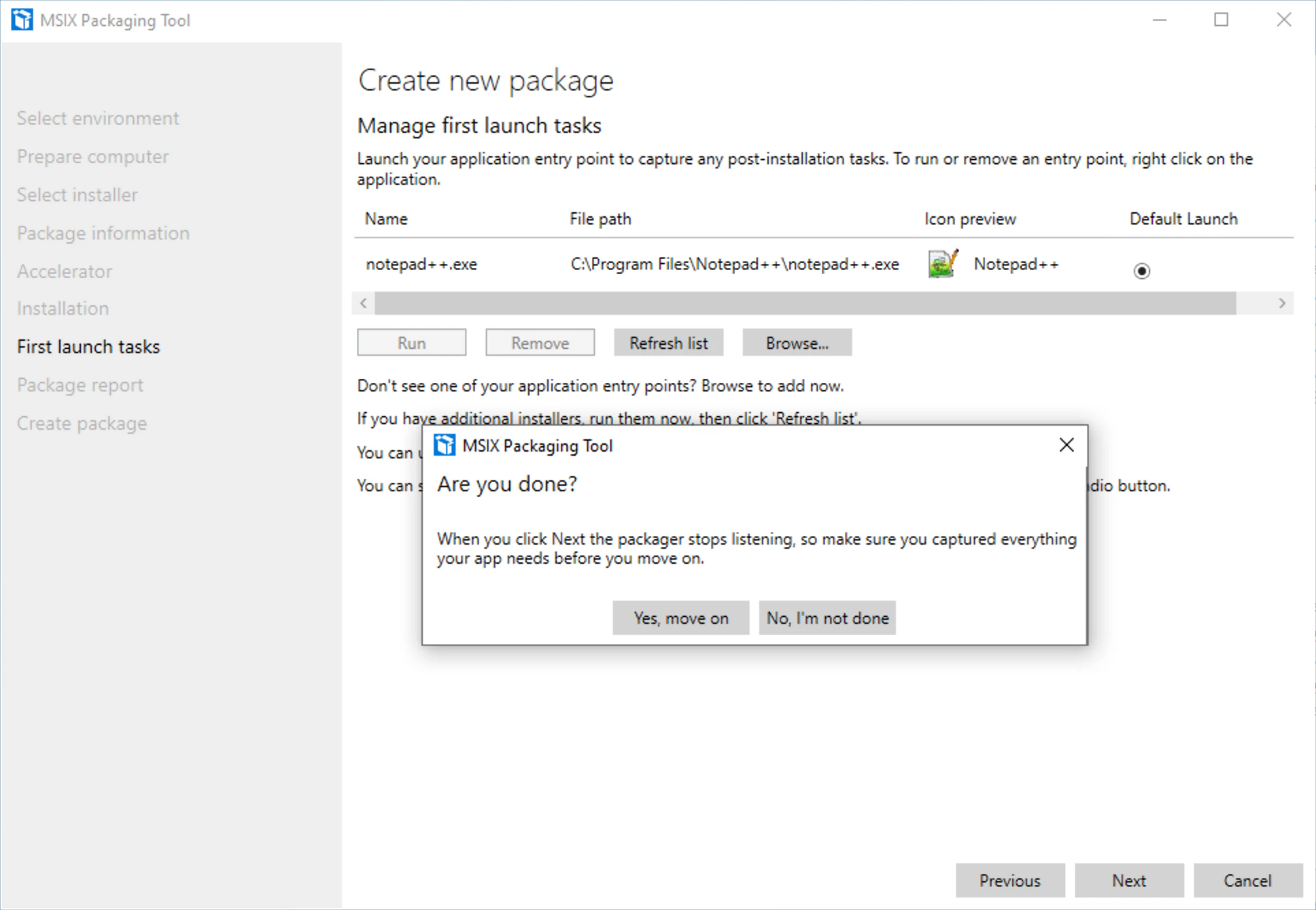
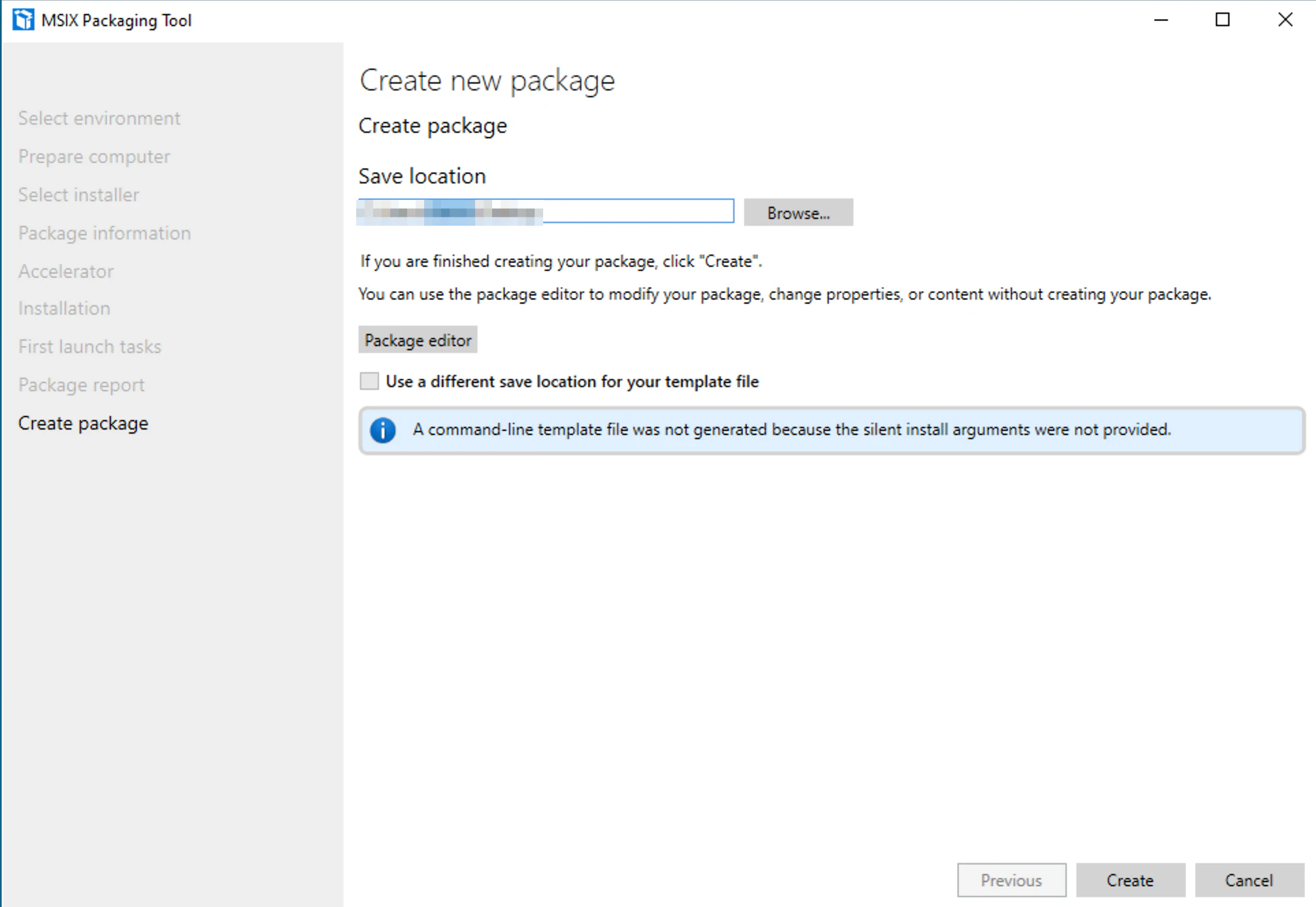
The tool will indicate that no services have been installed and detected. In the last dialog box, the location of the package can be specified. Clicking Create completes the creation.
Deploy certificate on other Windows PCs
In order to be able to install the MSIX package on other Windows PCs, the certificate must be provided on these.
To do this, the certificate must be exported from the PKCS#12 container (.pfx) as a single certificate (PEM format) using OpenSSL.
OpenSSL must be installed on the system for this.
This works with this command:
openssl pkcs12 -in MSIXZertifikat.pfx -clcerts -nokeys -out MSIXZertifikat.der
OpenSSL 3.x and higher:
openssl pkcs12 -in MSIXZertifikat.pfx -clcerts -nokeys -out MSIXZertifikat.der -passin pass:Passw0rd #Put your passphrase there
The PKCS1 certificate that has just been converted can then be uploaded to Relution under Settings → Certificates. The conversion is necessary because Relution installs an uploaded .pfx file as a client certificate and only offers the choice of certificate store for single certificates (PKCS1).
Finally, the certificate must be delivered to the devices in a policy for Windows devices. To do this, the Certificate configuration must be used and the certificate selected, see Install certificates →.
It is mandatory to select Trusted Root Certificate Authority as the Certificate store. The default setting Automatically would place the certificate created in the example in Personal, as it is not a certificate authority certificate; Windows would then not trust the MSIX package.
Upload the MSIX file to Relution
The finished package is uploaded under Apps → App Store via Add with the source Native app. Relution accepts the formats .msix, .msixbundle, .appx and .appxbundle. The app can then be distributed to the Windows devices on which the certificate is installed.