 Customer Hub
Antivirus
The Antivirus policy configuration manages Microsoft Defender Antivirus, the virus protection built into Windows. It defines scheduled scans and signature updates, the file types and exclusions for scans, Defender’s protection features, the default actions for detected threats and the attack surface reduction (ASR) rules. Many field labels in the portal still use the former product name “Windows Defender”.
Microsoft describes the individual settings in the documentation of the Policy CSP – Defender →.
Prerequisites
- Windows 10 version 1703 or later in the Home, Pro, Enterprise and Education editions, as well as Windows 11.
- One Antivirus configuration is possible per policy.
- Some fields carry version badges in the portal. Devices with an older Windows version do not receive these values; Relution omits them during the transfer:
- Windows 10 version 1709 or later: cloud protection level and cloud timeout, controlled folder access, network protection and all attack surface reduction settings,
- Enterprise and Education version 1709 or later only: Scan starts only when the device is on but not in use and Enables the randomization of the scheduled scan start time.
- According to Microsoft, the settings only take effect as long as Microsoft Defender Antivirus is the active virus protection on the device. If a third-party antivirus product is installed, Windows usually switches Defender to a passive or disabled mode.
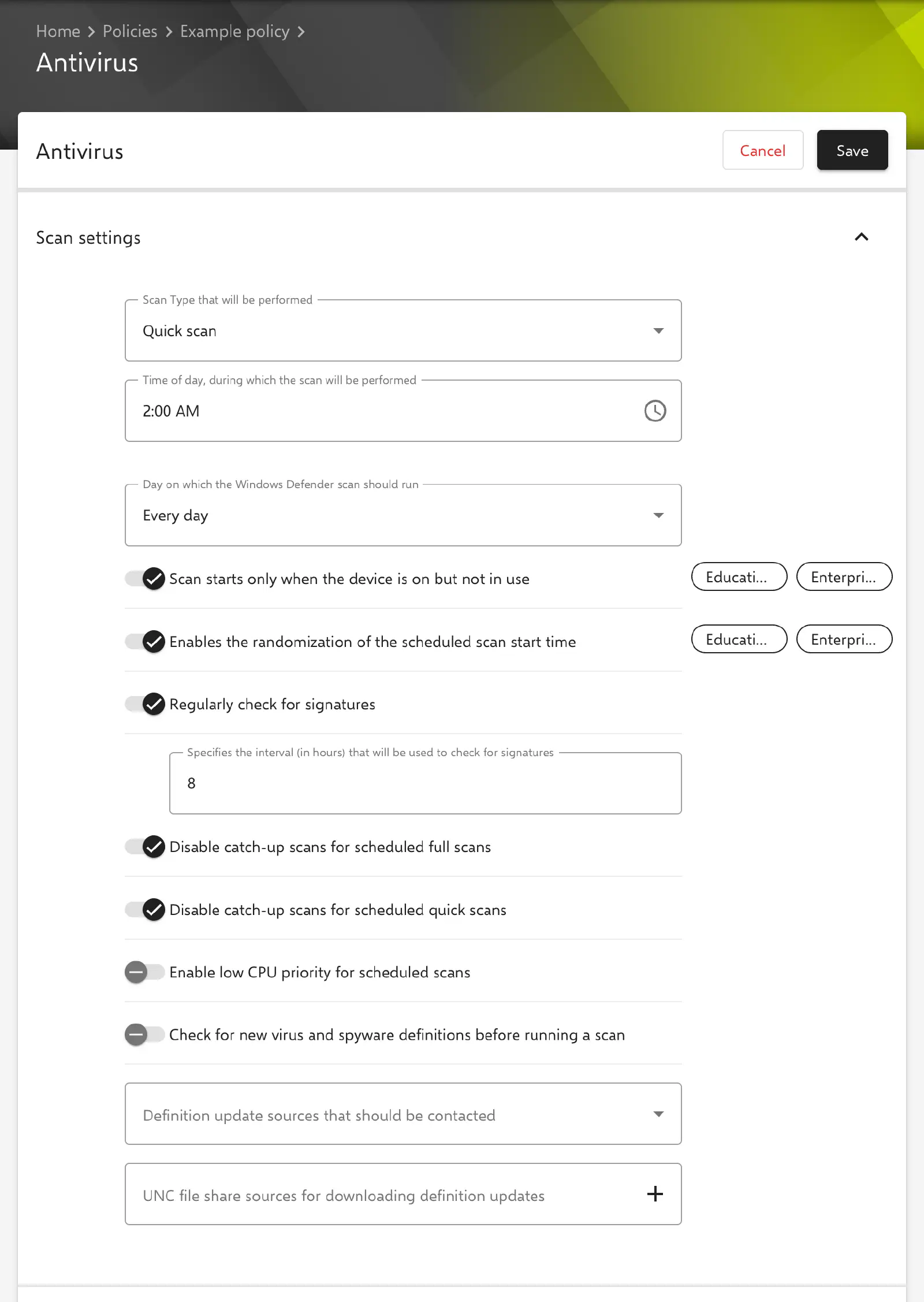
Scan settings
The Scan settings section defines the scheduled scan and the signature updates.
- Scan Type that will be performed: Quick scan (default) or Full scan for the scheduled scan.
- Time of day, during which the scan will be performed: start time of the scheduled scan (default: 02:00). The time is transferred as minutes after midnight; values up to 23:00 are permitted.
- Day on which the Windows Defender scan should run: Every day (default), a single weekday from Monday to Sunday, or Never. With Never, no scheduled scan takes place.
- Scan starts only when the device is on but not in use (default: enabled; Enterprise and Education version 1709 or later only).
- Enables the randomization of the scheduled scan start time (default: enabled; Enterprise and Education version 1709 or later only): Windows shifts the start of the scheduled scan randomly so that not all devices scan at the same time.
- Regularly check for signatures (default: enabled): The indented field Specifies the interval (in hours) that will be used to check for signatures can only be edited while the toggle is enabled (1 to 24 hours, default: 8). If the toggle is disabled, the interval
0is transferred; according to Microsoft, the time-based check is then omitted. - Disable catch-up scans for scheduled full scans (default: enabled) and Disable catch-up scans for scheduled quick scans (default: enabled): A catch-up scan runs a scheduled scan that was missed, for example because the device was switched off.
- Enable low CPU priority for scheduled scans (default: disabled).
- Check for new virus and spyware definitions before running a scan (default: disabled).
- Definition update sources that should be contacted: multiple selection of Internal definition update server, Microsoft Update server, MMPC and File Share. The selected sources appear in a list below; their order is set by dragging or with the arrow buttons and determines the order in which Defender contacts the sources. Without a selection, the Windows default remains in place.
- UNC file share sources for downloading definition updates: list of UNC paths (e.g.
\\fileserver\defender-updates) used for the File Share source.
Included file types
The Included file types section defines which content Defender checks.
- Allow scanning of archives (default: enabled), such as ZIP or CAB files.
- Allow scanning of network files (default: enabled).
- Allow full scan of removable drives (default: enabled): USB sticks and other removable drives are included in full scans.
- Allow scanning of emails (default: disabled).
- Allow full scan of mapped network drives (default: disabled): mapped network drives are included in full scans.
- Control which files should be monitored: direction of real-time monitoring – Scan all files (default), Scan only incoming files or Scan only outgoing files.
Excluded file types
In the Excluded file types section, exclusions are maintained as lists. Each entry is added individually.
- Disable scanning for specified paths: folders or files, e.g.
C:\Data\Build\. - Disable scanning for specified file types: file extensions, e.g.
log. - Disable scanning for files that are opened by specified process: files opened by these processes are not scanned, e.g.
C:\Program Files\Example\app.exe.
The portal does not validate the format of the entries. The hint text next to the field shows an example path with forward slashes (/Users/user/Documents/); Windows expects paths in Windows notation with a drive letter and backslashes.
Advanced settings
The Advanced settings section contains Defender’s protection features.
- Allow Windows Defender Realtime Monitoring (default: enabled).
- Allow Windows Defender Behaviour Monitoring (default: enabled).
- Allow Windows Defender Cloud Protection (default: enabled): cloud-delivered protection, in which unknown files are checked against Microsoft’s cloud service.
- Specify the level of protection enforced by Windows Defender Cloud Protection (version 1709 or later):
- Default windows defender blocking level (default)
- Block all unknown executables
- Aggressively block unknowns while optimizing client performance
- Aggressively block unknowns and apply additional protection measures
- Specify the amount of time a file will be blocked and scanned in the cloud (version 1709 or later): 10 to 60 seconds in steps of 10 seconds (default: 10 seconds). The extension beyond the usual 10 seconds is transferred.
- Checks for the user consent level in Windows Defender to send data: defines whether suspicious files are sent to Microsoft as samples.
- Always prompt the user
- Automatically send safe samples (default)
- Automatically send all samples
- Never send samples
- Allow Windows Defender IOAV Protection (default: enabled): checking of downloaded files and attachments.
- Allow Windows Defender Intrusion Prevention (default: enabled).
- Allow user to access the Windows Defender UI (default: enabled).
- Allow Windows Defender On Access Protection (default: enabled): checking of files on access.
- Represents the average CPU load factor for the Windows Defender scan: maximum average CPU load during a scan, 0 to 100 % (default: 50 %).
- Allow scanning of scripts (default: enabled).
- Enable controlled folder access (version 1709 or later): Disabled (default), Enabled or Audit Mode. Controlled folder access protects folders against changes by untrusted applications, for example by ransomware; in Audit Mode, access attempts are only logged.
- Allow Application to modify folders that are protected by controlled folder access (version 1709 or later): list of program paths that may still modify protected folders.
- Add folders to controlled folder access (version 1709 or later): list of additional folders protected in addition to those defined by Windows.
- Specify the level of protection against potentially unwanted applications (PUAs): Disabled (default), Enabled or Audit Mode.
- Enable Network Protection (version 1709 or later): Disabled (default), Enabled or Audit Mode. According to Microsoft, network protection prevents connections to addresses with a low reputation.
Threat management
In the Threat management section, the default action Defender performs on a detected threat is defined for each severity level:
- Low severity threats
- Moderate severity threats
- High severity threats
- Severe threats
The options available for each are Not configured (default), Try to recover files and disinfect, Move files to quarantine, Remove files from system, Allow files, User can choose which action to take and Block file execution. With Not configured, Relution does not transfer an action for this severity level; the Windows default behavior applies.
- Delete quarantined items after a specified amount of days has passed (default: disabled): The indented field Time period (in days) that quarantine items will be stored on the system can only be edited while the toggle is enabled (1 to 90 days, default: 1). If the toggle is disabled,
0is transferred; according to Microsoft, quarantined items are then kept indefinitely.
Attack surface reduction rules
Attack surface reduction (ASR) rules prevent typical malware behavior, such as launching processes from Office applications. All settings in this section require Windows 10 version 1709 or later.
- Disable Attack surface reduction (ASR) rules for specified paths: list of files and folders excluded from all ASR rules.
The rules themselves are shown in a list with the columns ASR rule and Status. Add opens the Attack surface reduction rule dialog with the fields ASR rule (required) and Status:
- Disable the ASR rule (default): The rule is switched off.
- Enable the ASR rule: The rule blocks.
- Evaluate how the ASR rule would impact your organization if enabled: audit mode, events are only logged.
- Enable the ASR rule but allow the end-user to bypass the block: warn mode.
An existing rule cannot be edited. To change the status, the rule is selected, removed via Delete and added again. The portal does not prevent the same rule from appearing in the list more than once; each rule should only be entered once.
The following rules are available in the ASR rule field, in the order used by the portal:
| No. | Label in the portal | GUID |
|---|---|---|
| 1 | Block abuse of exploited vulnerable signed drivers | 56a863a9-875e-4185-98a7-b882c64b5ce5 |
| 2 | Block Adobe Reader from creating child processes | 7674ba52-37eb-4a4f-a9a1-f0f9a1619a2c |
| 3 | Block all Office applications from creating child processes | D4F940AB-401B-4EFC-AADC-AD5F3C50688A |
| 4 | Block credential stealing from the Windows local security authority subsystem (lsass.exe) | 9e6c4e1f-7d60-472f-ba1a-a39ef669e4b2 |
| 5 | Block executable content from email client and webmail | BE9BA2D9-53EA-4CDC-84E5-9B1EEEE46550 |
| 6 | Block executable files from running unless they meet a prevalence, age, or trusted list criterion | 01443614-cd74-433a-b99e-2ecdc07bfc25 |
| 7 | Block execution of potentially obfuscated scripts | 5BEB7EFE-FD9A-4556-801D-275E5FFC04CC |
| 8 | Block JavaScript or VBScript from launching downloaded executable content | D3E037E1-3EB8-44C8-A917-57927947596D |
| 9 | Block Office applications from creating executable content | 3B576869-A4EC-4529-8536-B80A7769E899 |
| 10 | Block Office applications from injecting code into other processes | 75668C1F-73B5-4CF0-BB93-3ECF5CB7CC84 |
| 11 | Block Office communication application from creating child processes | 26190899-1602-49e8-8b27-eb1d0a1ce869 |
| 12 | Block persistence through WMI event subscription | e6db77e5-3df2-4cf1-b95a-636979351e5b |
| 13 | Block process creations originating from PSExec and WMI commands | d1e49aac-8f56-4280-b9ba-993a6d77406c |
| 14 | Block untrusted and unsigned processes that run from USB | b2b3f03d-6a65-4f7b-a9c7-1c7ef74a9ba4 |
| 15 | Block Win32 API calls from Office macros | 92E97FA1-2EDF-4476-BDD6-9DD0B4DDDC7B |
| 16 | Use advanced protection against ransomware | c1db55ab-c21a-4637-bb3f-a12568109d35 |
Relution only transfers the rule Block persistence through WMI event subscription to devices running Windows 10 version 1903 or later.
Transfer to the device
Relution transfers the settings via the Policy CSP Defender under ./Vendor/MSFT/Policy/Config/Defender/. All toggles and selection fields of the form are set, even if they are at their default value. The following are excluded:
- empty lists: they are not transferred; if a value was previously set, it is removed from the device,
- default actions in Threat management set to Not configured,
- fields not supported by the Windows version or edition of the device (see Prerequisites →).
Lists are transferred as a single value with | as the separator, the default actions as severity=action (e.g. 4=2|5=3) and the ASR rules as GUID=status.
CSP paths of the individual fields
| Field in the portal | CSP node |
|---|---|
| Scan Type that will be performed | Defender/ScanParameter |
| Time of day, during which the scan will be performed | Defender/ScheduleScanTime |
| Day on which the Windows Defender scan should run | Defender/ScheduleScanDay |
| Scan starts only when the device is on but not in use | ADMX_MicrosoftDefenderAntivirus/Scan_ScanOnlyIfIdle |
| Enables the randomization of the scheduled scan start time | ADMX_MicrosoftDefenderAntivirus/RandomizeScheduleTaskTimes |
| Specifies the interval (in hours) that will be used to check for signatures | Defender/SignatureUpdateInterval |
| Check for new virus and spyware definitions before running a scan | Defender/CheckForSignaturesBeforeRunningScan |
| Disable catch-up scans for scheduled full scans | Defender/DisableCatchupFullScan |
| Disable catch-up scans for scheduled quick scans | Defender/DisableCatchupQuickScan |
| Enable low CPU priority for scheduled scans | Defender/EnableLowCPUPriority |
| Definition update sources that should be contacted | Defender/SignatureUpdateFallbackOrder |
| UNC file share sources for downloading definition updates | Defender/SignatureUpdateFileSharesSources |
| Allow scanning of network files | Defender/AllowScanningNetworkFiles |
| Allow scanning of archives | Defender/AllowArchiveScanning |
| Allow full scan of removable drives | Defender/AllowFullScanRemovableDriveScanning |
| Allow scanning of emails | Defender/AllowEmailScanning |
| Allow full scan of mapped network drives | Defender/AllowFullScanOnMappedNetworkDrives |
| Control which files should be monitored | Defender/RealTimeScanDirection |
| Disable scanning for specified paths | Defender/ExcludedPaths |
| Disable scanning for specified file types | Defender/ExcludedExtensions |
| Disable scanning for files that are opened by specified process | Defender/ExcludedProcesses |
| Allow Windows Defender Realtime Monitoring | Defender/AllowRealtimeMonitoring |
| Allow Windows Defender Behaviour Monitoring | Defender/AllowBehaviorMonitoring |
| Allow Windows Defender Cloud Protection | Defender/AllowCloudProtection |
| Specify the level of protection enforced by Windows Defender Cloud Protection | Defender/CloudBlockLevel |
| Specify the amount of time a file will be blocked and scanned in the cloud | Defender/CloudExtendedTimeout |
| Checks for the user consent level in Windows Defender to send data | Defender/SubmitSamplesConsent |
| Allow Windows Defender IOAV Protection | Defender/AllowIOAVProtection |
| Allow Windows Defender Intrusion Prevention | Defender/AllowIntrusionPreventionSystem |
| Allow user to access the Windows Defender UI | Defender/AllowUserUiAccess |
| Allow Windows Defender On Access Protection | Defender/AllowOnAccessProtection |
| Represents the average CPU load factor for the Windows Defender scan | Defender/AvgCPULoadFactor |
| Allow scanning of scripts | Defender/AllowScriptScanning |
| Enable controlled folder access | Defender/EnableControlledFolderAccess |
| Allow Application to modify folders that are protected by controlled folder access | Defender/ControlledFolderAccessAllowedApplications |
| Add folders to controlled folder access | Defender/ControlledFolderAccessProtectedFolders |
| Specify the level of protection against potentially unwanted applications (PUAs) | Defender/PUAProtection |
| Enable Network Protection | Defender/EnableNetworkProtection |
| Default actions in Threat management | Defender/ThreatSeverityDefaultAction |
| Time period (in days) that quarantine items will be stored on the system | Defender/DaysToRetainCleanedMalware |
| ASR rules | Defender/AttackSurfaceReductionRules |
| Disable Attack surface reduction (ASR) rules for specified paths | Defender/AttackSurfaceReductionOnlyExclusions |
All nodes are located under ./Vendor/MSFT/Policy/Config/.
The device details show the Defender state in the Security card, provided the Defender service is running on the device, including Defender is enabled, Real-time protection is enabled, Windows Defender signature is outdated and Time of the last Windows Defender quick scan. A scan outside the schedule can be triggered with the device action Scan Device.
Related topics
- Available actions → — including the Scan Device action for an on-demand Defender scan.
- Windows Firewall → — firewall profiles and rules for Windows devices.
- App Control → — application control with WDAC policies.
- Custom CSP → — Defender settings not covered by the configuration.
- Windows Home Limitations → — policies and actions on Windows Home.