 Customer Hub
App compliance
The App compliance configuration defines which apps must be present on a Windows device. Relution can install these apps automatically and reports devices on which a required app is missing as noncompliant. The Windows configuration consists solely of the list of required apps; there is no block list or allow list. Applications are blocked with the App Control → configuration.
Prerequisites
- The configuration is created under
Devices→Policiesin a Windows policy via Add Configuration → App compliance. - One configuration of this type is possible per policy.
- The portal labels the configuration with Windows 10 version 1511 or later in the Pro, Enterprise and Education editions. On Windows Home, app installation by Relution is not available (see Windows Home Limitations →).
- Apps in
.msiand.exeformat as well as WinGet apps are installed and detected by the Windows Companion →; it must be installed on the device. WinGet apps additionally require the WinGet client on the device (see WinGet →). - For apps from the Microsoft Store, the Microsoft Store services must be reachable, both for the Relution server and for the device (see Microsoft Store URLs →).
Required apps
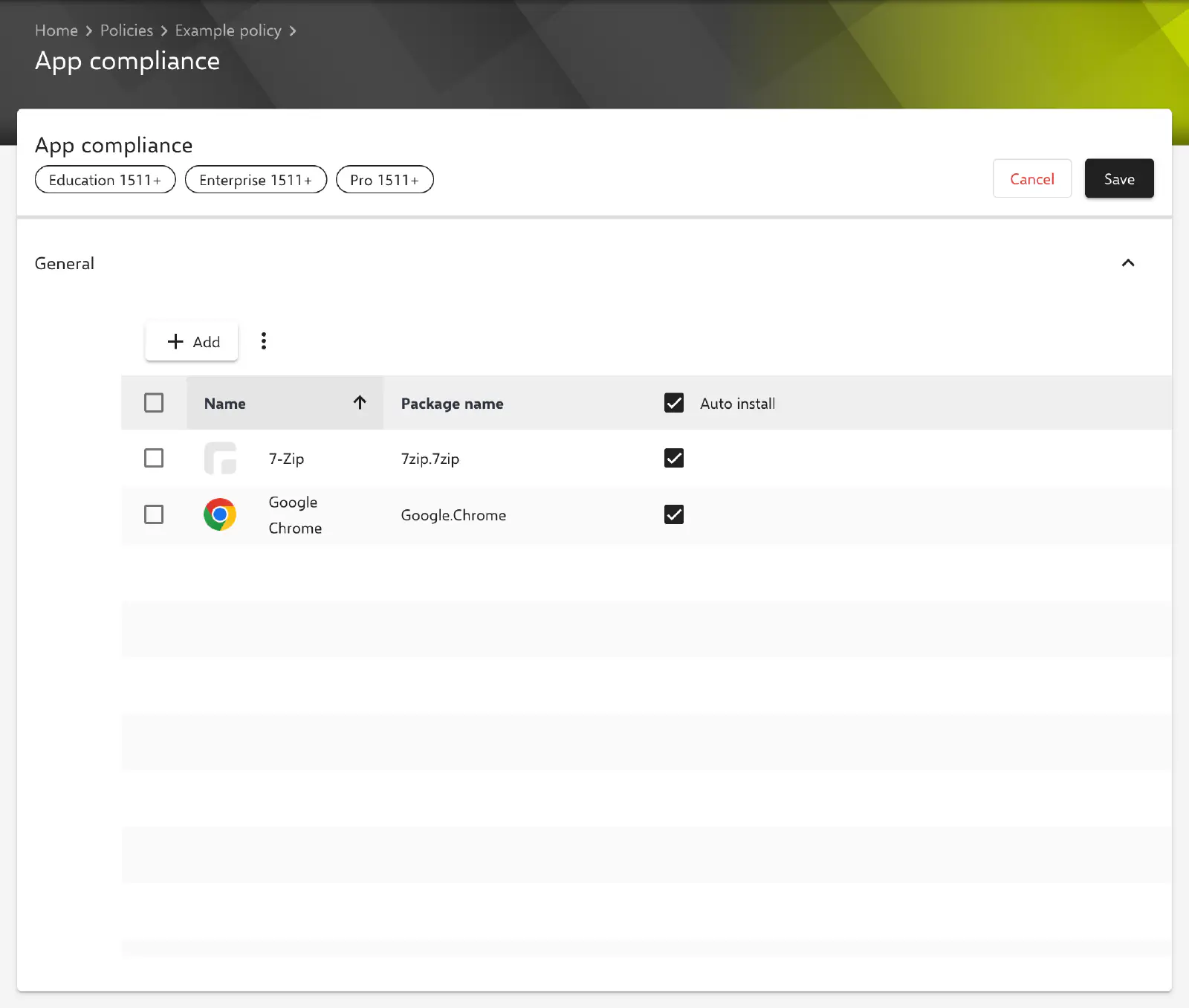
In the General section, the required apps are maintained in the Apps list. Add opens the Select an app dialog. In the Source step, two sources are available:
- Relution App Store app: Windows apps from the Relution App Store with a released version are offered. These include native apps (
.msi,.exe,.msix,.appxand the corresponding bundle formats) as well as WinGet and Microsoft Store apps that have been created in the Relution App Store. - Windows Store app: An app is searched for directly in the Microsoft Store, by its name or a link to its store page. The Country field determines the store catalogue that is searched.
Several apps can be selected in one step. An app that is already on the list is not added a second time. The Windows configuration does not offer manual entry of an app name or package name.
The list contains the following columns:
- Name: Display name of the app.
- Package name: Identifier by which Relution finds the app on the device. For Microsoft Store apps and MSIX packages this is the Package Family Name, for MSI, EXE and WinGet apps the internal name of the app in the Relution App Store.
- Auto install: If the checkbox is selected, Relution automatically installs the app on devices on which it is missing. It is selected when an app is added. The checkbox in the column header sets or clears the option for all apps at once.
Entries are removed via the context menu of a row or, after selecting several rows, via Delete. In a policy version that has already been published, the list is read-only.
For apps from the Microsoft Store, Relution determines the Package Family Name via the Microsoft Store service when saving. If this service cannot be reached or returns no data for the app, the configuration cannot be saved.
Automatic installation
The configuration itself does not transfer any settings to the device. For each app with Auto install that is missing on the device, Relution creates a separate installation action:
- MSIX and APPX packages and Microsoft Store apps are installed via the Windows MDM interface.
- MSI, EXE and WinGet apps are installed via the Windows Companion. For MSI and EXE apps, Relution uses the newest version of the app in the Relution App Store with the installation parameters and detection rules stored there (see Windows App Installation →).
The installation is triggered when the policy is assigned or changed. Afterwards, Relution checks every three minutes for up to 45 minutes whether the apps are reported by the device and requests the device information again if needed. If an app is still missing later on, Relution schedules the installation again after each device information refresh. An installation action that is still open for the same app is not created a second time.
If an app is removed from the list or the configuration no longer applies to the device, the already installed app remains on the device. It is uninstalled via the Remove app device action (see Available actions →).
Compliance check
If an app on this list is missing on a device, the device is displayed as Noncompliant in the device inventory, provided the option Add compliance violation when required apps are missing is enabled under Settings → Device Management → Device Management (default). All apps on the list are checked, including those without Auto install. This makes the configuration suitable for pure status monitoring of apps installed by other means.
An app is considered installed if its Package name is on the device’s list of installed apps:
- Microsoft Store apps and MSIX packages are detected by the Package Family Name that Windows reports for installed packages.
- The Windows Companion reports MSI and EXE apps as installed if all detection rules of the app match. Without a matching detection rule, the device remains noncompliant and the installation is scheduled again.
- WinGet apps are detected by their WinGet package identifier. Some WinGet apps do not appear in the list of installed apps or appear with different values (see WinGet →).
Multiple configurations on one device
If several App compliance configurations from different policies apply to a device, the required apps of all configurations are combined. Apps with the same Package name count once. If Auto install is set for an app in one of the configurations, it is installed automatically.
Related topics
- Available configurations → — All configurations for Windows at a glance.
- Windows App Installation → — Upload MSI and EXE apps and create detection rules.
- Create MSIX files → — Create MSIX packages and upload them to the Relution App Store.
- WinGet → — Create and deploy WinGet apps in the Relution App Store.
- Windows Companion → — Required for MSI, EXE and WinGet apps.
- App Control → — Allow or block the execution of applications.