 Customer Hub
Start menu
The Start menu policy configuration customizes the Windows Start menu. It defines hidden areas such as recently added or most used apps, the folder shortcuts in the Start menu, the options of the Power button and the user tile, and a fixed Start layout. For Windows 10, secondary tiles from Microsoft Edge can also be added.
Microsoft describes the individual settings in the documentation of the Policy CSP – Start →.
Prerequisites
- Windows 10 version 1703 or later and Windows 11. In the portal, the configuration carries badges for the Pro, Enterprise and Education editions.
- One Start menu configuration is possible per policy.
- Some fields carry version badges in the portal. Devices with an older Windows version do not receive these values; Relution omits them during the transfer:
- Windows 10 version 1709 or later: Application list,
- Windows 10 version 1803 or later: Disable context menus.
- Fields with the tooltip Requires a reboot of the system to take effect. only take effect after the device is restarted. This applies to the three toggles for frequently used apps, Jump Lists and recently added apps, the Start size and Application list selection fields, and the toggles for hiding the Power button and the user tile.
General
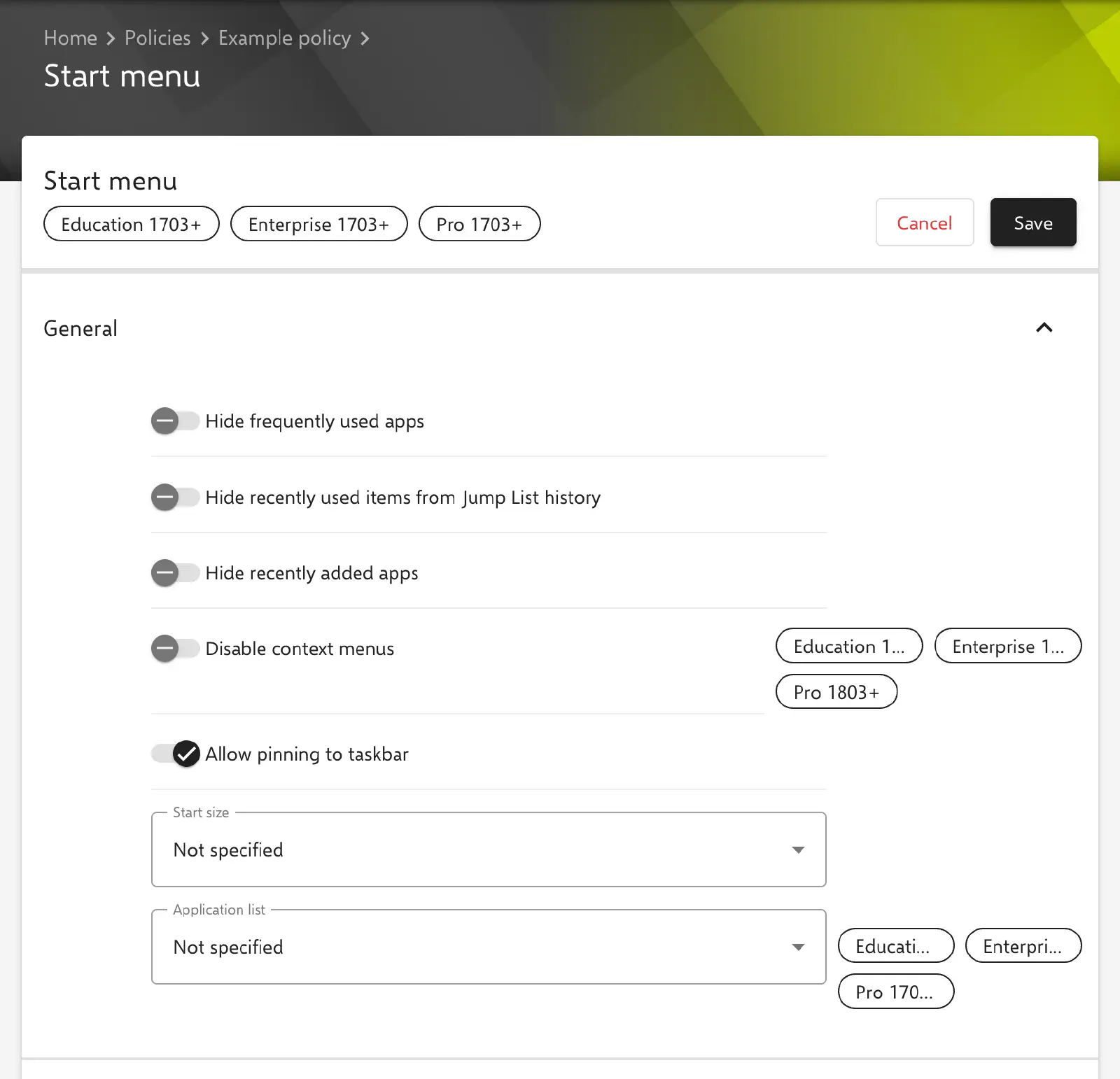
The General section contains settings for the content and appearance of the Start menu.
- Hide frequently used apps (default: off).
- Hide recently used items from Jump List history (default: off): The Jump Lists of the apps in the Start menu no longer show recently used files.
- Hide recently added apps (default: off).
- Disable context menus (default: off; version 1803 or later): Right-clicking in the Start menu no longer opens a context menu.
- Allow pinning to taskbar (default: on): If the toggle is off, apps can neither be pinned to nor unpinned from the taskbar.
- Start size: Not specified (default), Normal or Full screen. With Normal or Full screen, the size is enforced; with Not specified, the choice remains with the user.
- Application list (version 1709 or later):
- Not specified (default): no setting enforced.
- Collapse “Apps list”: The list of all apps is collapsed in the Start menu.
- Collapse “Apps list” and disable setting to change it: In addition, the display can no longer be turned on in the Windows settings.
- Hide “All apps” button: In addition to the above, the All apps button is removed.
Pinning
The Pinning section defines for ten folder shortcuts whether they appear in the Start menu. On Windows 10 the shortcuts are located in the left-hand bar of the Start menu, on Windows 11 next to the Power button.
- Allow to pinning a “Documents” folder
- Allow to pinning a “Downloads” folder
- Allow to pinning a “File explorer” folder
- Allow to pinning a “Home group” folder
- Allow to pinning a “Music” folder
- Allow to pinning a “Network” folder
- Allow to pinning a “Personal” folder
- Allow to pinning a “Pictures” folder
- Allow to pinning a “Settings” folder
- Allow to pinning a “Videos” folder
Each field offers the same three values:
- Not specified (default): The user decides in the Windows settings whether the shortcut is shown.
- Yes: The shortcut is shown; the corresponding option in the Windows settings is locked.
- No: The shortcut is hidden; the corresponding option in the Windows settings is locked.
According to Microsoft, HomeGroup no longer exists as of Windows 10 version 1803; the value is only relevant for older versions.
Power
The Power section controls the Power button of the Start menu and its menu entries.
- Hide “Power” button (default: off): The Power button is removed from the Start menu.
The indented checkboxes can only be edited while the toggle is off; they hide individual entries of the Power button (default for each: off):
- Hide “Shut down” button: hides Shut down and Update and shut down.
- Hide “Restart” button: hides Restart and Update and restart.
- Hide “Hibernate” button: according to Microsoft, only takes effect on laptops.
- Hide “Sleep” button
If the Power button is hidden, Relution does not transfer the four checkboxes.
User
The User section controls the user tile of the Start menu, which provides access to account and session functions.
- Hide user tile (default: off).
The indented checkboxes can only be edited while the toggle is off; they hide individual entries of the user tile (default for each: off):
- Hide “Lock” button
- Hide “Sign out” button
- Hide “Switch account” button
- Hide “Change account settings” button
If the user tile is hidden, Relution does not transfer the four checkboxes.
Start layout
In the Start layout section, a file is uploaded that defines the arrangement of the Start menu. Windows 10 and Windows 11 use different formats, so there are two upload fields:
- Windows 10 (.xml): Start layout in XML format as generated by Windows 10 when the Start menu is exported (
LayoutModification.xml). Relution transfers the file to devices running Windows 10. - Windows 11 (.json): list of pinned apps in JSON format as generated by Windows 11 when the Start menu is exported. Relution transfers the file to devices running Windows 11.
According to the information text in the portal, users cannot change the specified layout. Microsoft describes how layout files are created and exported under Customize the Start layout →.
Secondary Microsoft Edge tiles
In the Secondary Microsoft Edge tiles section, an XML file is uploaded via the Secondary Microsoft Edge tiles configuration (.xml) field. It contains images for tiles that point to web pages and open in Microsoft Edge. According to Microsoft, the file is used together with a Windows 10 Start layout that contains these tiles; Microsoft describes the details under Add image for secondary tiles →.
Transfer to the device
Relution transfers the settings via the Start Policy CSP under ./Vendor/MSFT/Policy/Config/Start/. All toggles and selection fields are set, even if they are at their default value. Exceptions:
- fields not supported by the device’s Windows version (see Prerequisites →),
- the entries of the Power button if the button is hidden,
- the entries of the user tile if the tile is hidden.
If the configuration is removed from the policy or the policy is removed from the device, Relution deletes the Start node on the device; the Windows defaults apply again.
CSP paths of the individual fields
| Field in the portal | CSP node |
|---|---|
| Hide frequently used apps | Start/HideFrequentlyUsedApps |
| Hide recently used items from Jump List history | Start/HideRecentJumplists |
| Hide recently added apps | Start/HideRecentlyAddedApps |
| Disable context menus | Start/DisableContextMenus |
| Allow pinning to taskbar | Start/NoPinningToTaskbar (inverted value) |
| Start size | Start/ForceStartSize |
| Application list | Start/HideAppList |
| Folder shortcuts in the Pinning section | Start/AllowPinnedFolderDocuments, …Downloads, …FileExplorer, …HomeGroup, …Music, …Network, …PersonalFolder, …Pictures, …Settings, …Videos |
| Hide “Power” button | Start/HidePowerButton |
| Entries of the Power button | Start/HideShutDown, Start/HideRestart, Start/HideHibernate, Start/HideSleep |
| Hide user tile | Start/HideUserTile |
| Entries of the user tile | Start/HideLock, Start/HideSignOut, Start/HideSwitchAccount, Start/HideChangeAccountSettings |
| Windows 10 (.xml) | Start/StartLayout |
| Windows 11 (.json) | Start/ConfigureStartPins |
| Secondary Microsoft Edge tiles configuration (.xml) | Start/ImportEdgeAssets |
All nodes are located under ./Vendor/MSFT/Policy/Config/.
Related topics
- Available configurations → — overview of all policy configurations for Windows.
- Windows kiosk mode → — restricting devices to one or a few apps.
- Apply restrictions → — further restrictions of the Windows interface and functions.
- Windows Shared PC → — configuring shared devices.
- Custom CSP → — Start menu settings not covered by the configuration.