 Customer Hub
Wallpaper
The Wallpaper policy configuration sets the desktop image and the lock screen image on Windows devices. Optionally, a text such as the device name is written onto the image. Relution sets the DesktopImageUrl and LockScreenImageUrl settings for this; the device then downloads the respective image from the Relution server.
Microsoft describes the settings in the documentation of the Personalization CSP →.
Prerequisites
- The configuration is created under
Devices→Policiesin a Windows policy via Add Configuration → Wallpaper. - One Wallpaper configuration is possible per policy.
- Windows 10 version 1709 or later in the Pro, Enterprise and Education editions, as well as Windows 11. The configuration is not applied on Windows Home.
- Windows Pro additionally requires the Education environment, see Windows Pro and the Education environment →.
- The device must be able to reach the external URL of the Relution server, as it downloads the image from there.
Settings
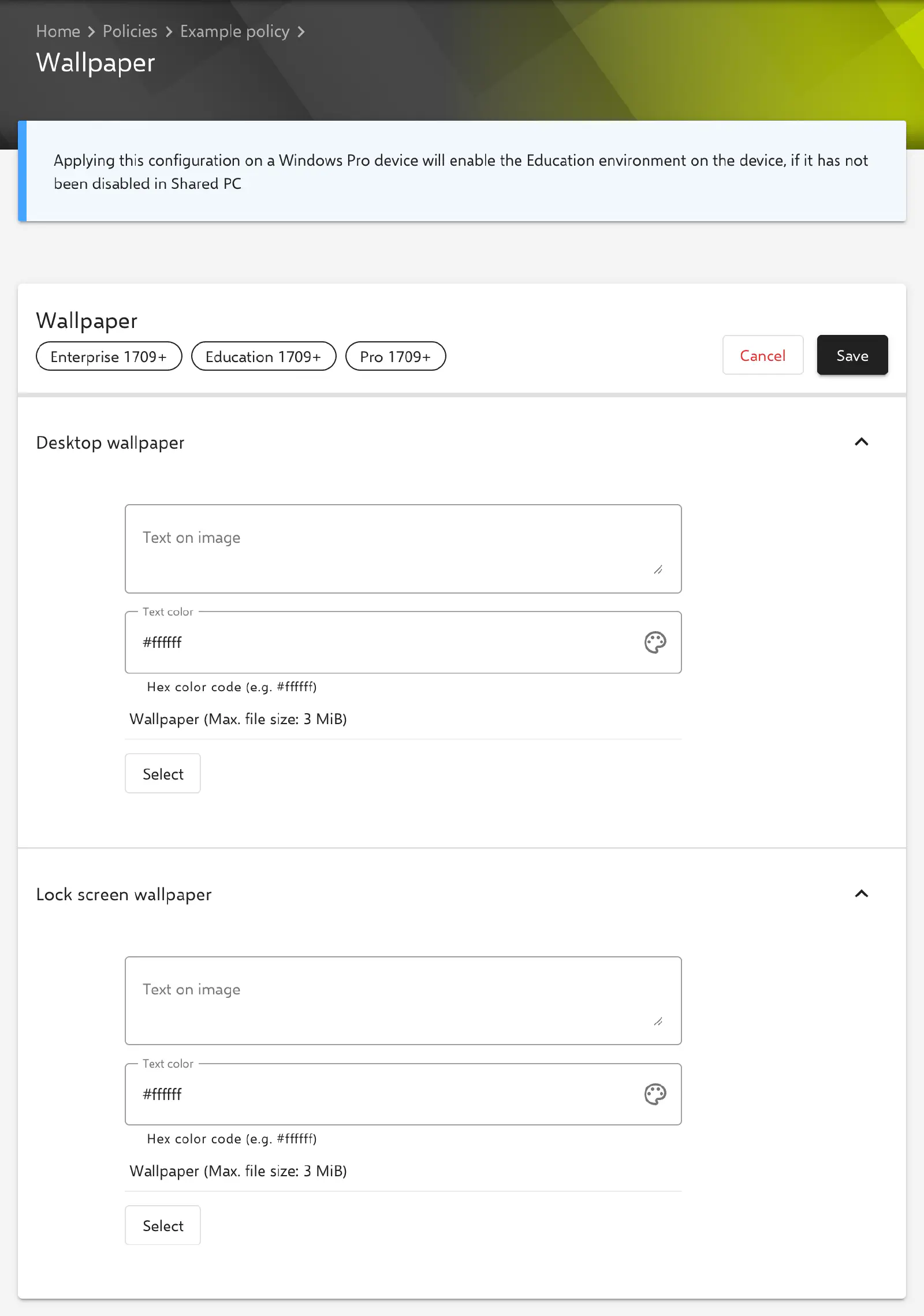
The form is divided into the sections Desktop wallpaper and Lock screen wallpaper, each with the same three fields. The two sections are independent of each other: an image can be stored for the desktop only, for the lock screen only, or for both. None of the fields is mandatory.
- Text on image: multi-line text of up to 512 characters that Relution writes onto the image (default: empty). Placeholders such as
${device.name}are replaced for each device; the portal lists the available placeholders below the form. Without text, the device receives the uploaded image unchanged. - Text color: color of the text as a hex color code, e.g.
#000000(default:#ffffff). The value is selected with the color picker next to the field or entered directly. A value in any other format is marked as an error, and the configuration cannot be saved. - Wallpaper: image file for the respective screen. After the upload, the portal shows a preview. By default, the file may be at most 3 MB; on self-hosted installations, the limit is adjusted in
application.ymlvia the keyrelution.wallpaper.max-file-size.windows. According to Microsoft, Windows processes images in JPG, JPEG and PNG format. If no image is stored, Relution sets no setting for this screen, even if a text is entered.
Since Relution 26.5.5, text output on wallpapers is disabled on the server by default; devices then receive the image without text. Activation, supported image formats and further notes on the text are described in Text on wallpapers →.
Windows Pro and the Education environment
According to Microsoft, Windows Pro only evaluates the wallpaper settings if the Education environment (SetEduPolicies in the SharedPC CSP) is enabled. The form points this out with a notice above the fields. When applying the configuration to a Windows Pro device, Relution acts on the value the device reports:
- No value set: Relution enables the Education environment together with the wallpaper.
- Enabled: The wallpaper is set without any further change.
- Disabled: The Wallpaper configuration is not applied. This is the case if a Windows Shared PC → configuration with Enable Education environment switched off (default) is applied to the device. For a wallpaper, Enable Education environment is switched on there.
On Enterprise and Education, the configuration does not change the Education environment.
Behavior on the device
- When the policy is applied, Relution transfers an address on the Relution server for each stored image. If the Text on image field contains text, the server generates the image with the text substituted for the device.
- If an image is removed from the configuration, Relution deletes the corresponding setting on the device the next time the policy is applied.
- If the configuration or the policy is removed from the device, Relution deletes both settings. On Windows Pro, the Education environment setting is also removed, provided that no Shared PC configuration is applied to the device. Which image Windows displays afterwards is up to Windows.
Related topics
- Text on wallpapers → — text output, image formats, retention of rendered images and troubleshooting.
- Advanced placeholders → — placeholders for the text on the image.
- Windows Shared PC → — the Enable Education environment setting.
- Available configurations → — overview of all Windows configurations.
- Windows Home Limitations → — policies that are not applied on Windows Home.