 Customer Hub
Configure Companion
The Windows Companion policy configuration controls the behavior of the Relution Companion for Windows → on managed Windows devices. The configuration is divided into four sections: General, App handling, Server communication and User change on login.
Log level
Defines how detailed the log entries written by the Windows Companion are. Available options are None, Critical, Error, Warning, Information, Debug and Trace — verbosity increases with each level. The default is Information.
Action Timeout
Defines the maximum time in minutes for an action to be processed until it is aborted by the Windows Companion. The default is 45 minutes; values from 15 to 180 minutes are allowed.
App installation timeout
Defines the maximum time in minutes for an app installation to be processed until it is aborted by the Windows Companion. The default is 45 minutes; values from 1 to 150 minutes are allowed.
App removal timeout
Defines the maximum time in minutes for an app uninstallation to be processed until it is aborted by the Windows Companion. The default is 45 minutes; values from 1 to 150 minutes are allowed.
Manage WinGet and its dependencies
Defines whether WinGet and its dependencies, like Microsoft VC Redistributable, are managed and updated automatically by the Windows Companion. The option is enabled by default. If it is disabled, the Companion no longer updates WinGet, but still installs a missing Microsoft VC Redistributable so that WinGet commands keep working.
Server communication
Communication between the Relution Companion and the Relution Server is necessary for Relution to work properly. Communication is initiated either by:
- the Server, telling the Companion to start communicating
- the Companion, if no interaction between Server and Companion occurred for some time
The settings below allow administrators to optimize the behavior of this mechanic, although this should not usually be necessary. After the time defined by Check interval, the Companion will start communication if the last communication with the server is older than the time specified by Time since last communication.
Check interval
Defines the interval in minutes at which the Windows Companion checks whether a request to the Relution Server is necessary. The default is 180 minutes; values from 15 to 1,440 minutes are allowed.
Time since last communication
Defines the minimum duration in minutes the Windows Companion waits before sending the next request to the Relution Server. The default is 120 minutes; values from 15 to 600 minutes are allowed.
User change on login
As of version 26.4, the Relution Companion for Windows can automatically update the device user assigned in Relution as soon as a different person logs into the Windows device. This is especially useful for devices shared by several people, e.g. in a classroom or open-plan office: the device user stored in Relution always matches the person actually logged in on the device.
Enabling the feature
The feature must be enabled in two places before it takes effect:
Organization-wide under
Settings→Relution Client Apps→Windows companionusing the Enable device user change toggle. The setting is only available in organizations below the global organization and requires the permission for Relution Client Apps.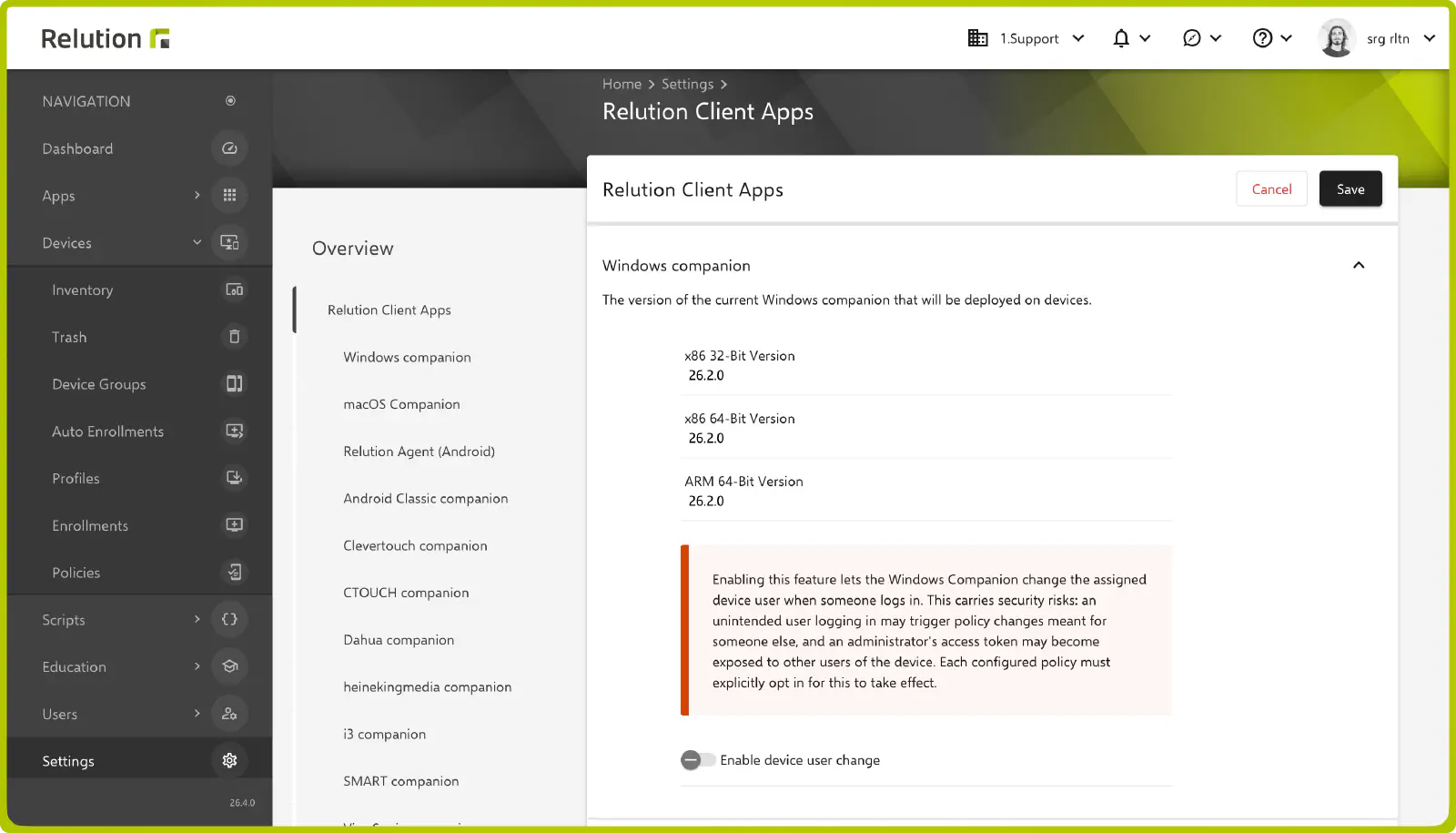
Additionally, in every policy that should use it, in the
Windows Companion→User change on loginsection via the User change mode. If the toggle is disabled at the organization level, the policy can only be saved with the mode Disabled; if the toggle is switched off later, existing policies show a corresponding error when opened.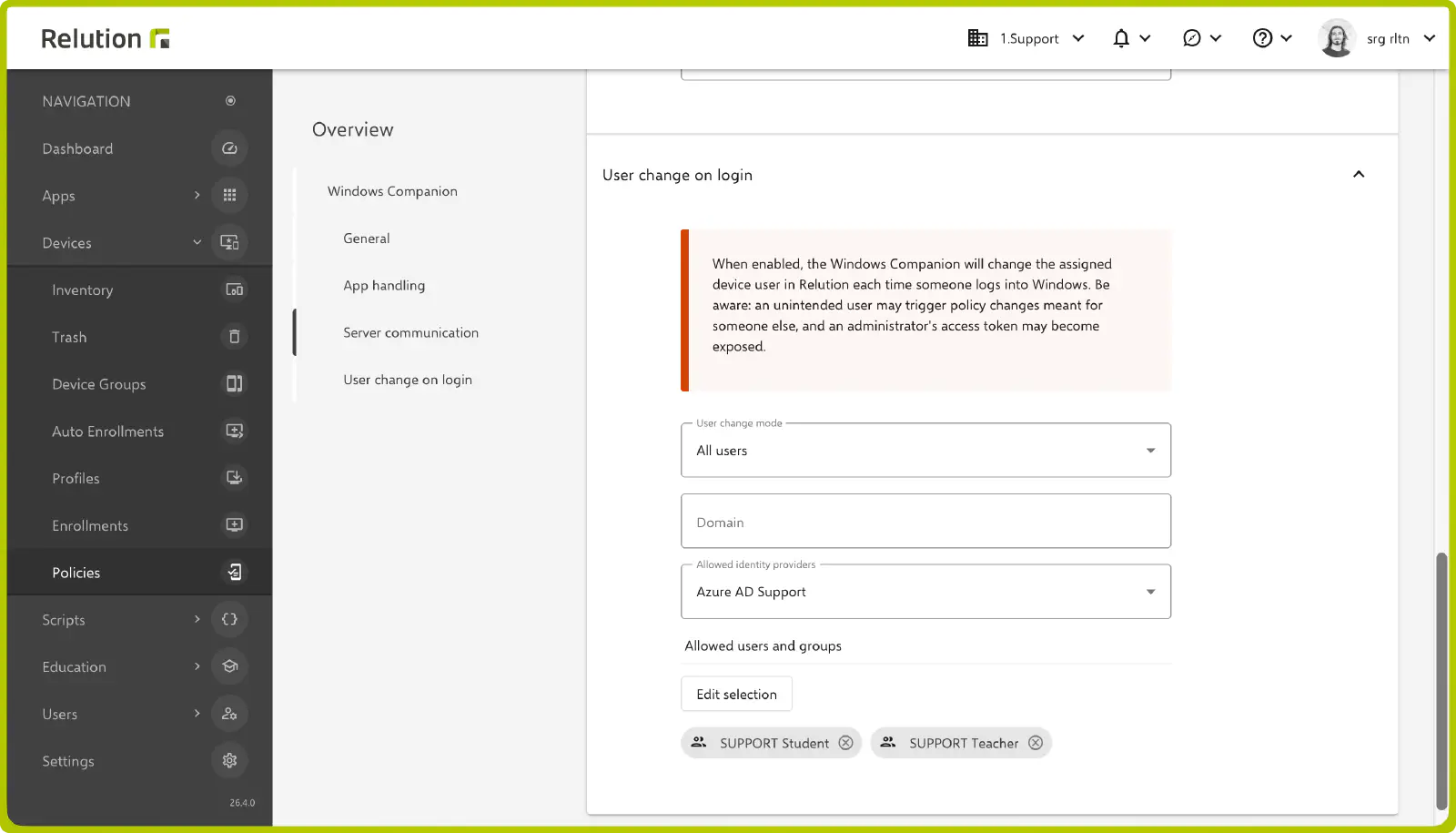
User change mode
- Disabled: No automatic user change.
- Only domain users: The change only happens if the logging-in person’s UPN matches the domain entered in the Domain field (case-insensitive) and the person belongs in Relution to one of the providers selected under Allowed identity providers. A domain and at least one allowed identity provider are required for this. At least one active identity provider must exist in the organization; without one, the Allowed identity providers field cannot be selected and the policy cannot be saved in this mode.
- All users: Domain and Allowed identity providers are optional. If a domain is specified, the change only happens if the UPN matches it (case-insensitive); if identity providers are selected, the person must belong to one of them. If both fields are left empty, no filtering is applied.
In both active modes, the change can additionally be restricted via Allowed users and groups (Edit selection button). Only the selected users and members of the selected groups are then allowed. If the field is left empty, no additional restriction applies.
The match is made using the Windows login name, which is compared against the username in Relution within the same organization. If the logging-in person is not known in Relution or does not meet the configured conditions, the assigned device user is removed, but no error is shown on the device. With each change, the Last connected Entra ID user field in the device details is updated; for persons unknown in Relution, it shows the Windows login name in the format Domain\User.